0%

通常,按钮有两种状态,普通和高亮,所以,我们需要先准备两张图片,这里是blueButton.png和whiteButton.png,拖进项目中。 Interface Builder并没有图形化实现该功能的方法,需要我们自己在代码中设置按钮的背景。 在ViewController.m的(void)viewDidLoad方法中:

    UIImage *normalImage=[[UIImage imageNamed:@"whiteButton.png"] resizableImageWithCapInsets:UIEdgeInsetsMake(8, 10, 37, 28)];
    UIImage *pressedImage=[[UIImage imageNamed:@"blueButton"] resizableImageWithCapInsets:UIEdgeInsetsMake(8, 10, 37, 28)];
    [button1 setBackgroundImage:normalImage forState:UIControlStateNormal];
    [button1 setBackgroundImage:pressedImage forState:UIControlStateHighlighted];
    [super viewDidLoad];

先读取图片文件,得到UIImage对象,再设置该对象可拉伸,UIEdgeInsetsMake的四个参数,分别为在图片中可拉伸区域上,左,下,右的x或y座标,左和右是x,上和下是y. 再给UIButton对象发送消息- (void)setBackgroundImage:(UIImage *)image forState:(UIControlState)state,设置不同状态时显示的图片。

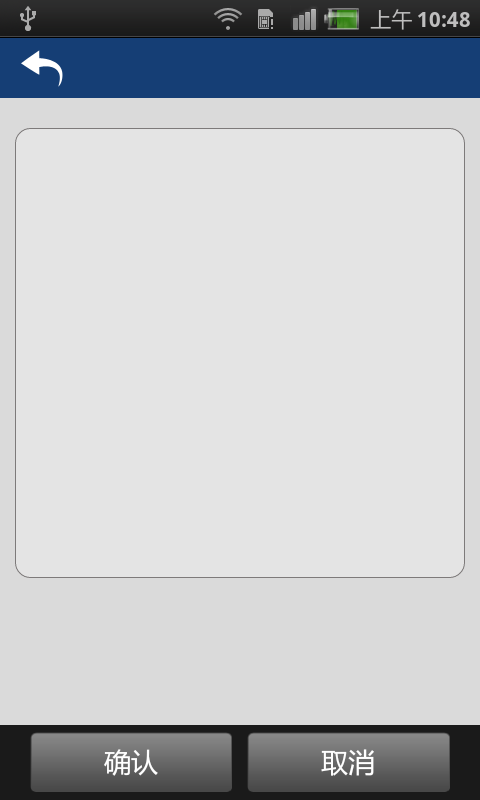
需要圆角距形的背景,可是直接用一终圆角的图片,但是因为Android屏幕分辨率太乱,为了能适应所有的分辨率,我们不可能事确定好宽度,虽然可以用draw9patch,但我一直没掌握那工具的用法,做出来的图片最终还是变形,但用下面的方法就永远不会变形,因为没有用图片,是用Android直接绘图. 最终的效果图: 新建一个drawable的xml文件,这里名为server_setting_bg:

<?xml version="1.0" encoding="utf-8"?>
<shape xmlns:android="http://schemas.android.com/apk/res/android" >
    <!-- 边缘线的宽度和颜色 -->
    <stroke android:width="1px" android:color="#7d7a7a" />
    <!-- 中间的背景色 -->
    <solid android:color="#e4e4e4"/>
    <!-- 设置四个角的角度 -->
   <corners android:topLeftRadius="10dp" android:topRightRadius="10dp" android:bottomLeftRadius="10dp" android:bottomRightRadius="10dp"/>
</shape>

调用方法:

        <LinearLayout
            android:layout_width="fill_parent"
            android:layout_height="300dp"
            android:layout_marginLeft="10dp"
            android:layout_marginRight="10dp"
            android:layout_marginTop="20dp"
            android:background="@drawable/server_setting_bg"
            android:orientation="vertical" >
            
        </LinearLayout>

URL中带点的参数,点后会被自动识别成文件扩展名而过滤掉,只能取到点前的值,比如: http://192.168.0.81/thinkphp/index.php/Graph/cluster/name/my%20cluster/range/hour/server/localhost.localdomain 取server参数时,只能取到localhost。 解决方法,在项目配置文件中加上:

'URL_HTML_SUFFIX'=>'.html'

不一定要html,看自己需求,设置了以后,会过过滤被设置的值。

经过几天的研究,总结把Ganglia的结构弄清楚了。 Ganglia分为三部分: gmond,客户端守护进程,安装在所有需要监控的机器上,用于收集客户端的信息 gmetad,服务端守护进程,安装在监控主服务器端,收集从客户端传过来的数据,使用rrdtool,把数据保存在/var/lib/ganglia/rrds/目录下。 PHP Web frontend: 与gmetad装在同一台服务器,就是一个普通的php程序,不需要特殊的扩展,apache+php就可以了,也不需要数据库。因为登录验证是通过Apache,读报表数据是直接从rrdtool里读。 PHP Web frontend最关键的部分在于,读取Grid,Cluster,Host信息(节点分组,客户端列表),以及画图(表)两部分。 读取分组及客户端信息,是在ganglia.php中的Gmetad()方法,使用socket连接到gmetad(一般就是本机)的8652端口,与gmetad交互,返回的是xml格式的数据. 画图则更简单,在graph.php中,通过传入的参数,组合生成rrdtool的画图命令,使用passthru方法执行该命令并输出,输出前先把Content-type设为image/png. 可以得出结论,PHP Web frontend其实只是用于展示gmetad数据的数据,而且交互的数据都是标准的XML,我们完全可以用其他语言如Java,.Net之类的开发自己的前端。

在查询条件比较复杂时,需要调用List query(PreparedQuery preparedQuery) 方法。 PreparedQuery对象获取方法为:

            QueryBuilder builder = serviceDao.queryBuilder();
            builder.where().eq("place", place).and().eq("category", category);
            PreparedQuery preparedQuery=builder.prepare();

模块分组有助于简化目录结构,配置方法: 这里以项目App,模块Home和Admin为例 入口文件 index.php:

<?php
define('APP_DEBUG', true);
define('APP_NAME', 'App');
define('APP_PATH','./App/');

require './ThinkPHP/ThinkPHP.php';

?>

运行一次,会生成App目录,找到,/App/Conf/config.php,编辑:

<?php
return array(
    //分组列表
    'APP_GROUP_LIST' =>'Home,Admin',
    //默认模块
    'DEFAULT_GROUP'=>'Home'
);
?>

最后,在/App/Lib/Action下建立Home和Admin目录,把自动生成的IndexAction.class.php拖进Home,或者自己写个Action,再刷新页面。

前文,Android开发 自定义Toast样式,基本实现了自定义的Toast,但没想到客户的需求有点变态。要求提示的时候背景变灰,用户不可操作,而且提示的时间还要根据字符串长度计算,原想在Toast的基础上扩展,修改WindowManager.LayoutParams.flag,但发现Toast源代码调用了隐藏的API,我们是没法实现了。客户的要求其实就是一个AlertDialog,那就写个自定义的AlertDialog吧。因为项目中大量使用了Toast,调用方法为:

MyToast.makeText(context, "密码错误,请进SOS查看!!", Toast.LENGTH_LONG).show();

为了减少代码修改,必须把我们自定义的Toast也加上一个静态的makeText方法,和一个show()方法,以达到不用修改调用方法的目的。

package com.jtang.android.components;

import android.app.AlertDialog;
import android.content.Context;
import android.os.Handler;
import android.os.Message;
import android.view.LayoutInflater;
import android.view.View;
import android.view.Window;
import android.widget.TextView;

import com.jtang.android.R;

public class MyToast{

    static AlertDialog ad;
    Context context;
    long delayMills=0;
    View view;
    Handler handler;
    public MyToast(Context context) {
        
        ad = new AlertDialog.Builder(context).create();
        this.context=context;
        handler=new Handler()
        {
            @Override
            public void handleMessage(Message msg) {
                // TODO Auto-generated method stub
                super.handleMessage(msg);
                switch(msg.what)
                {
                case 0:
                    ad.dismiss();
                    break;
                }
            }
            
        };
    }

    public static MyToast makeText(Context context, CharSequence text, int duration) {
        // AlertDialog ad=new AlertDialog.Builder(context).create();
        MyToast myToast = new MyToast(context);
        myToast.setMessage(text);
        return myToast;
    }
    public static MyToast makeText(Context context, int resId, int duration) {
        return makeText(context,context.getResources().getString(resId),duration);
    }
    
    public void setMessage(CharSequence message) {
        LayoutInflater inflate = (LayoutInflater) context.getSystemService(Context.LAYOUT_INFLATER_SERVICE);
        view = inflate.inflate(R.layout.my_toast, null);
        TextView tv = (TextView) view.findViewById(R.id.message);
        tv.setText(message);
        //根据文本长度设置显示的时间
        delayMills=143*message.length();
    }

    public void show() {
        ad.show();
        Window window = ad.getWindow();
        window.setContentView(view);
        new Thread()
        {
            public void run()
            {
                try {
                    sleep(delayMills);
                    handler.sendEmptyMessage(0);
                } catch (InterruptedException e) {
                    // TODO Auto-generated catch block
                    e.printStackTrace();
                }
            }
        }.start();
    }

}

以上的代码还有问题,当连续调用两次时,显示的效果不是像Toast一样按顺序显示信息,而是直接再开一个对话框,并且,在第二个对话框关闭后,第一个对话框就一直留着。 下面的代码在以上基础上做了修改,增加了单例模式,完全实现Toast的效果。

package com.jtang.android.components;

import java.util.LinkedList;
import java.util.Queue;

import android.app.AlertDialog;
import android.content.Context;
import android.os.Handler;
import android.os.Message;
import android.view.LayoutInflater;
import android.view.View;
import android.view.Window;
import android.widget.TextView;

import com.jtang.android.R;

public class MyToast {

    AlertDialog ad;
    Context context;
    long delayMills = 0;
    View view;
    Handler handler;
    //单例,是因为有时候会在一次提示没结束时弹出第二次提示,要实现像Toast一样,顺序提示,只能单例了
    static MyToast instance;
    //存储信息内容的列队
    Queue messages;
    TextView tv;
    CharSequence message;
    //当前是否正在显示
    boolean isShowing=false;
    public MyToast(Context context) {
        messages = new LinkedList();
        ad = new AlertDialog.Builder(context).create();
        
        this.context = context;
        LayoutInflater inflate = (LayoutInflater) context.getSystemService(Context.LAYOUT_INFLATER_SERVICE);
        view = inflate.inflate(R.layout.my_toast, null);
        tv = (TextView) view.findViewById(R.id.message);
        
        final Window window = ad.getWindow();
        //setContentView之前如果不调show方法会异常
        ad.show();
        window.setContentView(view);
        ad.hide();
        handler = new Handler() {
            @Override
            public void handleMessage(Message msg) {
                // TODO Auto-generated method stub
                super.handleMessage(msg);
                switch (msg.what) {
                case 0:
                    setMessage(message);
                    ad.show();
                    break;
                case 1:
                    ad.hide();
                    break;
                case 2:
                    ad.dismiss();
                    break;
                }
            }

        };
    }

    public static MyToast makeText(Context context, CharSequence text, int duration) {
        //构建新实例
        if (instance==null) {
            instance = new MyToast(context);
        }
        //把消息添加进列队
        instance.addMessage(text);
        return instance;
    }

    public static MyToast makeText(Context context, int resId, int duration) {
        return makeText(context, context.getResources().getString(resId), duration);
    }

    public void setMessage(CharSequence message) {
        tv.setText(message);
    }

    public void addMessage(CharSequence message)
    {
        messages.offer(message);
    }
    public void show() {

        //如果在上一条没显示完的时候,再次调用show()方法,直接返回
        if(isShowing)
        {
            return;
        }
        isShowing=true;
        new Thread() {
            public void run() {
                //取出信息,循环显示
                while((message=messages.poll()) != null)
                {
                    handler.sendEmptyMessage(0);
                    //根据信息长度计算显示时间
                    delayMills=143*message.length();
                    try {
                        sleep(delayMills);
                        //隐藏
                        handler.sendEmptyMessage(1);
                    } catch (InterruptedException e) {
                        // TODO Auto-generated catch block
                        e.printStackTrace();
                        handler.sendEmptyMessage(1);
                    }
                }
                //全部显示完,dismiss对话框
                handler.sendEmptyMessage(2);
                //把当前实例设为null,下次再调用时重新构建,之所以这么干,是因为窗口会按建构的顺序显示
                //如果不重新构建,在之后创建的Dialog中如果要调用这个show方法,就会显示在之后创建的Dialog后面,谁最后创建,谁在最前。
                instance=null;
            }
        }.start();
    }


}
在AlertDialog中使用自定义的View,如果View中有EditText,在上面点击,默认是跳不出软键盘的,不是焦点的问题。 解决方法,有两种,一是把AlertDialog换成Dialog,但这么一来,对话框的最外层会多出一个框,顶部还会空几十个DP,当然可以用setBackgroundDrawable(new ColorDrawable(0))把背景设为透明,隐藏掉边框,但是上面空着的几十个DP还在,对话框就不是在屏幕居中了。 代码:

Dialog ad = new Dialog(context);
ad.show();
Window window = ad.getWindow();
window.setBackgroundDrawable(new ColorDrawable(0));  
window.setContentView(R.layout.cancel_sos_dialog);

最好的办法是第二种:

AlertDialog ad =  new AlertDialog.Builder(context).create(); 
ad.setView(ManagerDialogLayout_.build(context,ad));
ad.show();
Window window = ad.getWindow();
window.setContentView(ManagerDialogLayout_.build(context,ad));

在调用show方法前先调用setView(layout),show后再调用window.setContentView(layout),两个Layout布局应该是相同的。 至于原因,暂时不明,但是确实解决了问题,在EditText上点击,可以调出软键盘,输入法了。 2013年1月6日:第一种方法的BUG,解决方法: 使用自定义的Style:

    <style name="CustomDialogStyle" parent="@android:style/Theme.Dialog">
        <item name="android:windowFrame">@null</item>
        <item name="android:windowIsFloating">true</item>
        <item name="android:windowIsTranslucent">true</item>
        <item name="android:windowNoTitle">true</item>
        <item name="android:background">@android:color/transparent</item>
        <item name="android:windowBackground">@android:color/transparent</item>
        <item name="android:backgroundDimEnabled">true</item>
        <item name="android:backgroundDimAmount">0.6</item>
    </style>


Dialog ad = new Dialog(context,R.style.CustomDialogStyle);

默认的Toast有点单调,与项目UI不匹配,自己写了一个。 先定义Layout,:

<?xml version="1.0" encoding="utf-8"?>
<LinearLayout xmlns:android="http://schemas.android.com/apk/res/android"
    android:layout_width="wrap_content"
    android:layout_height="111dp"
    android:orientation="horizontal" >

    <ImageView
        android:layout_width="25dp"
        android:layout_height="fill_parent"
        android:src="@drawable/my_toast_left" />

    <TextView
        android:id="@+id/message"
        android:layout_width="wrap_content"
        android:layout_height="fill_parent"
        android:background="#CCFFFFFF"
        android:gravity="center"
        android:singleLine="true"
        android:textColor="@color/black"
        android:textSize="31dp" />

    <ImageView
        android:layout_width="25dp"
        android:layout_height="fill_parent"
        android:src="@drawable/my_toast_right" />

</LinearLayout>

有是一个半透明的背景框,上面有一个TextView,左右分开是因为四角是椭圆的。本来中间TextView的背景也是用一张半透明的图片,但发现用了以后,宽度即便改成wrap_content,也不能自动适应了,宽度是背景图片的宽度。 所以现在直接写成白色,再设置一个透明度。 MyToast类继承Toast:

package com.jtang.android.components;

import com.jtang.android.R;

import android.content.Context;
import android.view.Gravity;
import android.view.LayoutInflater;
import android.view.View;
import android.widget.TextView;
import android.widget.Toast;


public class MyToast extends Toast {

    public MyToast(Context context) {
        super(context);
        // TODO Auto-generated constructor stub
    }
    public static Toast makeText(Context context, CharSequence text, int duration) {
        Toast result = new Toast(context);

        LayoutInflater inflate = (LayoutInflater)
                context.getSystemService(Context.LAYOUT_INFLATER_SERVICE);
        View v = inflate.inflate(R.layout.my_toast, null);
        TextView tv = (TextView)v.findViewById(R.id.message);
        tv.setText(text);
        
        result.setView(v);
        //setGravity方法用于设置位置,此处为垂直居中
        result.setGravity(Gravity.CENTER_VERTICAL, 0, 0);
        result.setDuration(duration);
        return result;
    }
    
}