0%

前面说到用代码写TableViewCell的样式(),但代码必竟没有Interface Builder来得方便,今天就介绍使用Interface Builder编辑NIB文件来实现自定义样式。 前面两步与用代码相同,即: 1、新建一个Single View Application 项目,如前文,只选Use Automatic Reference Counting. 2、打开PDViewController.xib,拖进一个Table View,选中Table View,打开Connections inspector,拖动delegate和dataSource右边的小圆到File’s Owner. 第3步,也是写一个继承自UItableViewCell的类(我这取名NIBCell),但内容稍有不同。 NIBCell.h:

#import 

@interface NIBCell : UITableViewCell

@property (strong, nonatomic) IBOutlet UIImageView *thumbView;
@property (strong, nonatomic) IBOutlet UILabel *titleView;
//两个outlet与NIB文件中的控件连接
@property (copy,nonatomic)  NSString * title;
@property (strong,nonatomic) UIImage * thumb;
//两个属性分别用于设置上面两个outlet的属性
@end

NIBCell.m

#import "NIBCell.h"

@implementation NIBCell
@synthesize thumbView = _thumbView;
@synthesize titleView = _titleView;
@synthesize title=_title,thumb=_thumb;

/*
 因为样式是在nib文件中定义的,所以不再需要
 - (id)initWithStyle:(UITableViewCellStyle)style reuseIdentifier:(NSString *)reuseIdentifier 方法
 */

- (void)setSelected:(BOOL)selected animated:(BOOL)animated
{
    [super setSelected:selected animated:animated];

    // Configure the view for the selected state
}


-(void)setTitle:(NSString *)title
{//覆盖默认生成的setter,但有outlet,不再需要content的viewWithTag方法来取得View
    if(![self.title isEqualToString:title])
    {
        _title=title;
        _titleView.text=_title;
    }

}
-(void)setThumb:(UIImage *)thumb
{
    if(![self.thumb isEqual:thumb])
    {
        _thumb=thumb;
        [_thumbView setImage:_thumb];
    }
}

@end

第四步,新建文件,IOS–User Interface–Empty,我这取名TableViewCell.xib 5、单击TableViewCell.xib以便用Interface Builder打开编辑(这时是空的),从控件库里找到Table View Cell,拖进Interface Builder,再拖进一个UILable,和一个UIImage View用于显示一段文字和图片(与前面NIBCell类中的定义相符) 6、选中整个Table View Cell,打开Identity Inspector,把Class改为NIBCell。 7、打开Connections Inspector,找到两个Outlet,thumbView和titleView(我们在NIBCell中定义的),将其右边的小圆圈拖动到Interface Builder里相应的UIImage View和 UILable控件上,建立连接。 8、PDViewController代码: PDViewController.h

#import 

@interface PDViewController : UIViewController
//与前面相同,为了简便,不定义用于存储每行信息的数组
@end

PDViewController.m

#import "PDViewController.h"
#import "NIBCell.h"

@implementation PDViewController

- (void)didReceiveMemoryWarning
{
    [super didReceiveMemoryWarning];
    // Release any cached data, images, etc that aren't in use.
}

#pragma mark - View lifecycle

- (void)viewDidLoad
{
    [super viewDidLoad];
    // Do any additional setup after loading the view, typically from a nib.
}

- (void)viewDidUnload
{
    [super viewDidUnload];

    // Release any retained subviews of the main view.
    // e.g. self.myOutlet = nil;
}

- (void)viewWillAppear:(BOOL)animated
{
    [super viewWillAppear:animated];
}

- (void)viewDidAppear:(BOOL)animated
{
    [super viewDidAppear:animated];
}

- (void)viewWillDisappear:(BOOL)animated
{
    [super viewWillDisappear:animated];
}

- (void)viewDidDisappear:(BOOL)animated
{
    [super viewDidDisappear:animated];
}

- (BOOL)shouldAutorotateToInterfaceOrientation:(UIInterfaceOrientation)interfaceOrientation
{
    // Return YES for supported orientations
    return (interfaceOrientation != UIInterfaceOrientationPortraitUpsideDown);
}
-(NSInteger)tableView:(UITableView *)tableView numberOfRowsInSection:(NSInteger)section
{
//返回行数
    return 100;
}
-(UITableViewCell *)tableView:(UITableView *)tableView cellForRowAtIndexPath:(NSIndexPath *)indexPath
{
    static NSString * tableIdentifier=@"CellFromNib";
    static BOOL nibsRegistered=NO;
    if(!nibsRegistered)
    {//第一次运行时注册nib文件,文件名不需要扩展名
        UINib *nib=[UINib nibWithNibName:@"TableViewCell" bundle:nil];
        [tableView registerNib:nib forCellReuseIdentifier:tableIdentifier];
        nibsRegistered=YES;
    }
    NIBCell *cell=[tableView dequeueReusableCellWithIdentifier:tableIdentifier];
    NSUInteger rowNumber=[indexPath row];
    NSString *title=[[NSString alloc] initWithFormat:@"%d",rowNumber];
    cell.title=title;
    UIImage *image=[UIImage imageNamed:@"57"];
    cell.thumb=image;
    //显示行号,和一张固定的图片,图片同样不需要扩展名
    return cell;
}
-(CGFloat)tableView:(UITableView *)tableView heightForRowAtIndexPath:(NSIndexPath *)indexPath
{
    //返回行高
    return 100;
}

@end
在Windows Phone中,默认的按钮Button控件并没有设置成图片样式的功能,如果在Background属性设置一张图片,再隐藏边框,虽然在外观上看就是一图片按钮,但是如果点击的话,会发现图片看不到了,只有一个前景色的距形,与真正的ImageButton还有有区别的。如果直接用图片,不用Button的话,会发现Image控件没有Click属性。 我们今天的目标:定制一个控件,有Button的功能,Image的外观。 简单说一下实现步骤,先是定义一个继承自Button的ImageButton控件,增加ImageSource属性,用于设置图片,然后用Expression Blend给这个控件定义外观。 ImageButton.cs:

using System;
using System.Net;
using System.Windows;
using System.Windows.Controls;
using System.Windows.Documents;
using System.Windows.Ink;
using System.Windows.Input;
using System.Windows.Media;
using System.Windows.Media.Animation;
using System.Windows.Shapes;

namespace PhoneApp2
{
    public class ImageButton : Button
    {
        public static readonly DependencyProperty ImageSourceProperty =
    DependencyProperty.Register(
        "ImageSource",
        typeof(ImageSource),
        typeof(ImageButton),
        null);

        public ImageSource ImageSource
        {
            get { return (ImageSource)GetValue(ImageSourceProperty); }
            set { SetValue(ImageSourceProperty, value); }

        }
    }
}

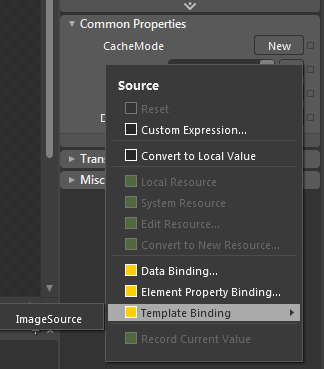
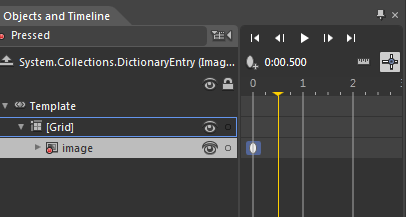
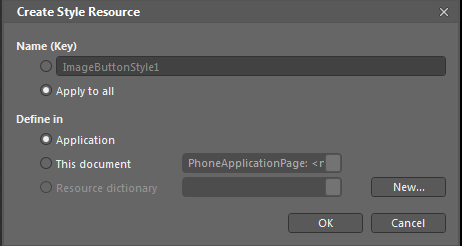
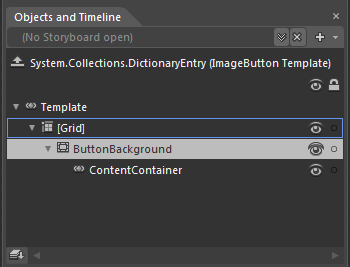
编辑好ImageButton.cs后,编译一下,会发现ToolBox下面多出了ImageButton。拖动一个ImageButton到页面上,会发现,它的外观其实跟Button一模一样,因为我们是直接继承自Button,没有给它定义自己的样式。 添加ImageButton后,在Solution Explorer中选中包含ImageButton的xaml文件,右键,点”Open in Expression Blend”,用Expression Blend打开。 打开后,单击选中ImageButton,点右键,选择Edit Template,Edit a copy,选择Apply to all,Application,再点OK,如下图: 查看Objects and Timeline窗口(默认在左侧),把ButtonBackground删掉,如下图: 删除后,添加一个Image控件(点击最左侧的>>图标,输入Image,当然你也可以一个一个慢慢找),选中刚刚添加的Image控件,在右侧属性中找到Source属性,点击右边的小方块(不是浏览按钮),Template Binding—ImageSource 这样,就把图片的Source属性跟ImageButton的ImageSource属性绑定了,我们在外部只需要设置ImageSource属性就可以同步修改Image的Source属性。 到此为止,已经基本实现了我们需要的功能,但是为了按钮更美观,可以定义按钮在不同状态下显示效果以及一些简单的动画。 在States选项卡中,点击Common States下的Pressed,定义在按钮被按下时的显示效果。比如,实现被按下时,图片变大,可以找到Image的Scale属性,把x,y值设为大于1的浮点值,如果是缩小,小于1.默认情况下,设置完以后,在点击时会有一个过渡的动画效果,即图片逐渐变大或变小。 也可以通过Timeline来自定义动画效果,点击Show TimeLine按钮,出现窗口如下图: 可以添加时间点,每个点显示的样式自己定义。

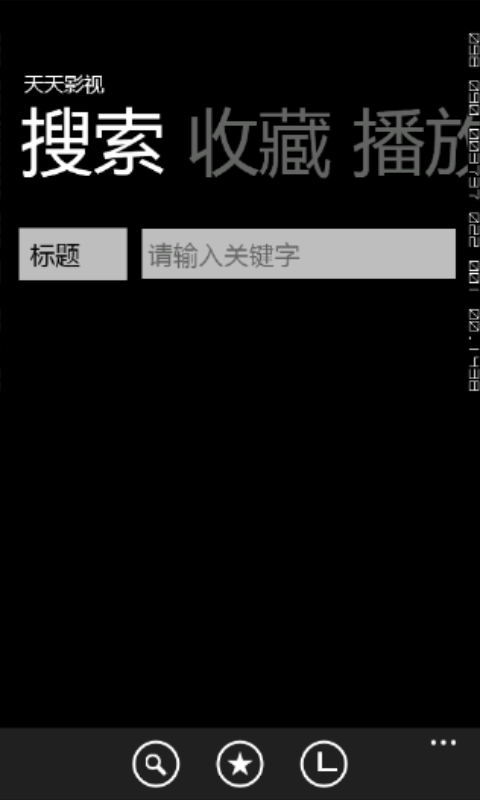
在其他手机系统中,文本输入框都有个Hint属性,在未输入文本的时候,用灰色文字提示用户,但是在Windows Phone中,默认的TextBox是没有这个功能的(Windows Phone好像就是个半成品),如果需要使用此功能,就需要Silverlight for Windows Phone Toolkit中的PhoneTextBox。 效果图: 在未输入文字之前,会显示”请输入关键字”,点击输入框或输入文本后,会隐藏。 使用方法,参考前面的博文,添加Silverlight for Windows Phone Toolkit引用,在xaml头部添加命名空间。 在适当的位置,添加PhoneTextBox:

<toolkit:PhoneTextBox x:Name="textBox1" Text="" AllowDrop="False" GotFocus="textBox1_GotFocus" TextInput="textBox1_TextInput" Margin="118,4,0,0" HorizontalAlignment="Left" Width="338" VerticalAlignment="Top" Hint="请输入关键字" />

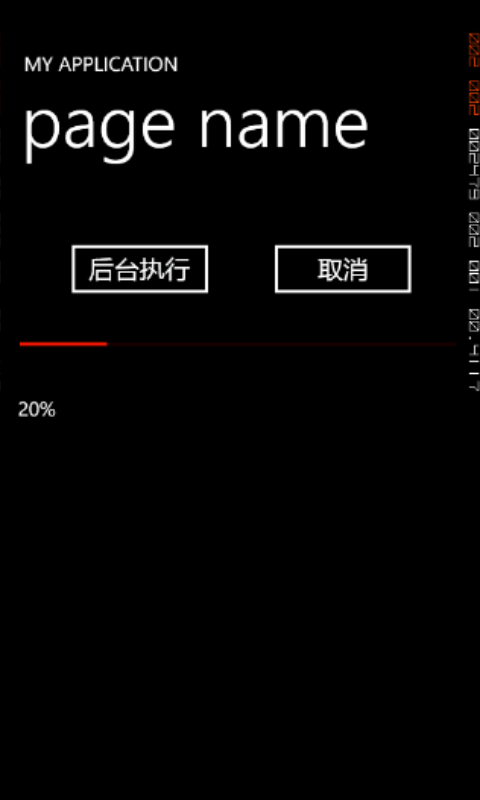
BackgroundWorker功能类似于多线程,可以执行耗时操作而不影响UI,用法类似于WebClient,以事件的形式与UI线程通讯,如进度改变,执行完毕。BackgroundWorker还可以在执行过程中取消。范例效果图: 代码:

using System;
using System.Collections.Generic;
using System.Linq;
using System.Net;
using System.Windows;
using System.Windows.Controls;
using System.Windows.Documents;
using System.Windows.Input;
using System.Windows.Media;
using System.Windows.Media.Animation;
using System.Windows.Shapes;
using Microsoft.Phone.Controls;
using System.Threading;
using System.ComponentModel;
using System.Diagnostics;

namespace PhoneApp1
{
    public partial class MainPage : PhoneApplicationPage
    {
        private BackgroundWorker bw;
        public MainPage()
        {
            InitializeComponent();
            bw = new BackgroundWorker();
            bw.WorkerReportsProgress = true;
            bw.WorkerSupportsCancellation = true;
            bw.DoWork += new DoWorkEventHandler(bw_DoWork);
            //后台执行方法
            bw.ProgressChanged += new ProgressChangedEventHandler(bw_ProgressChanged);
            //进度改变方法
            bw.RunWorkerCompleted += new RunWorkerCompletedEventHandler(bw_RunWorkerCompleted);
            //事件处理不能在点击按钮时才添加,因为是+=,所以当按钮被点多次时,就会有多个事件处理方法
        }

        private void button1_Click(object sender, RoutedEventArgs e)
        {

            if (bw.IsBusy != true)
            {//判断是否繁忙,防止在一次没有执行完时按第二次
                bw.RunWorkerAsync();
            }
        }
        private void bw_DoWork(object sender,DoWorkEventArgs e)
        {//后台执行
            BackgroundWorker worker = sender as BackgroundWorker;
            for (int i = 1; i <= 10; i++)
            {
                if ((worker.CancellationPending == true))
                {//被取消
                    e.Cancel = true;
                    break;
                }
                else
                {
                    System.Threading.Thread.Sleep(500);
                    worker.ReportProgress(i * 10);
                }
            }
        }
        private void bw_ProgressChanged(object sender, ProgressChangedEventArgs e)
        {//更新进度
            progressBar1.Value = e.ProgressPercentage;
            textBlock1.Text = e.ProgressPercentage.ToString() + "%";
        }
        private void bw_RunWorkerCompleted(object sender, RunWorkerCompletedEventArgs e)
        {//执行完毕或取消

            if (e.Cancelled)
            {//判断被取消还是执行完
                textBlock1.Text = "被取消";
            }
            else
            {
                textBlock1.Text = "执行完毕";
            }
        }

        private void button2_Click(object sender, RoutedEventArgs e)
        {//取消执行
            if (bw.WorkerSupportsCancellation == true)
            {
                bw.CancelAsync();
            }
        }


    }
}

在Windows Phone中,HttpWebRequest和WebClient都是异步的,但网上很多文章说WebClient因为回调在UI线程,对性能会有点影响,目前我自己的app就是用WebClient实现,确实会影响UI线程,进度条也会卡。下面是一个使用HttpWebRequest异步下载的完整例子:

using System;
using System.Collections.Generic;
using System.Linq;
using System.Net;
using System.Windows;
using System.Windows.Controls;
using System.Windows.Documents;
using System.Windows.Input;
using System.Windows.Media;
using System.Windows.Media.Animation;
using System.Windows.Shapes;
using Microsoft.Phone.Controls;
using System.IO;

namespace WebRequest
{
    public partial class MainPage : PhoneApplicationPage
    {
        // Constructor
        delegate void DownDelegate(string content);
        DownDelegate downDelegate;
        //委托
        public MainPage()
        {
            InitializeComponent();
           
        }
        private void setConent(string content)
        {
            textBlock1.Text = content;
        }
        private void ResponseCallback(IAsyncResult result)
        {
            HttpWebRequest request = (HttpWebRequest)result.AsyncState;
            WebResponse response = request.EndGetResponse(result);
            using (Stream stream = response.GetResponseStream())
            {
                using (StreamReader reader = new StreamReader(stream))
                {
                    string contents = reader.ReadToEnd();
                    Dispatcher.BeginInvoke(downDelegate, contents);//特别注意需要通过Dispatcher去更新UI进程
                }
            }
        }
        private void button1_Click(object sender, RoutedEventArgs e)
        {
            string url = "http://www.pocketdigi.com";
            downDelegate = setConent;
            System.Net.WebRequest request = HttpWebRequest.Create(url);
            IAsyncResult result = (IAsyncResult)request.BeginGetResponse(ResponseCallback, request);
            //完成后调用委托,更新UI
        }

    }
}

代码如下:

        System.out.println(android.os.Build.VERSION.SDK_INT);
        //API版本,如2.3.6是10, 4.0.3是15
        System.out.println(android.os.Build.VERSION.RELEASE);
        //系统版本,如2.1, 2.3.3
        System.out.println(android.os.Build.MODEL);
        //手机型号,如SGH-I897,Galaxy Nexus

在Galaxy Nexus等没有实体导航键的手机上,Android 4.0会在屏幕底部显示一排导航键(返回,主页,最近任务,菜单),在视频播放时,很有必要把这个导航条隐藏,以增加视频可视空间。

View rootView=getWindow().getDecorView();
rootView.setSystemUiVisibility(View.SYSTEM_UI_FLAG_HIDE_NAVIGATION);

这样也不能完全解决隐藏导航键的问题,因为Google认为导航控制太重要了,所以只要一点屏幕,这几个键马上会显示,而且是优先响应这几个键的显示事件,具体表现为,点击屏幕上的控件一次,只会显示导航键,而不会响应被点控件的点击事件。这也可以通过rootView设置OnSystemUiVisibilityChangeListener来解决。

安装好三星的驱动后关机进入fastboot,发现无法识别硬件Android 1.0,不能自动安装驱动,网上论坛贴子下载的驱动也无法安装。解决方法:手动安装Android 1.0的驱动,点“从计算机的设备驱动程序列表中选择”,找到SAMSUNG Android ADB Interface,有好几个,我选了个日期最近的。