0%

我的ListBox,原来是绑定List的,发现即使更新了List的元素,列表也不会更新,改用 ObservableCollection后解决. 代码如下:

            ObservableCollection ff = new ObservableCollection();
            ff.Add(item);
            FirstListBox.ItemsSource = ff;
            ff.Add(item);

上面的代码在ListBox上可以看到两项,但如果用List,只能看到一项

原理:通过传入的参数(ListBox),遍历其子控件,找到垂直方向的ScrollBar,再通过ValueChanged事件根据其ValueProperty(当前值)和MaximumProperty(最大值)判断是否滚到底. 取ScrollBar的方法:

        private static ScrollBar GetVerticalScrollBar(DependencyObject parent)
        {
            List listScrollBar = new List();
            ListverticalScrollBar(parent, listScrollBar);
            //遍历子控件,如果是垂直方向的ScrollBar,则加入List
            if (listScrollBar.Count > 0)
            {//一个控件肯定最多只有一个垂直的ScrollBar,所以返回第一个就行
                return listScrollBar.ElementAt(0);
            }
            return null;
        }
        private static void ListverticalScrollBar(DependencyObject parent, List listScrollBar)
        {
            int count = VisualTreeHelper.GetChildrenCount(parent);
            //取子控件数量,
            for (int i = 0; i < count; i++)
            {
                DependencyObject child = VisualTreeHelper.GetChild(parent, i);
                //逐个取出,看其是否是ScrollBar
                if (child is ScrollBar)
                {
                    ScrollBar scrollBar = (ScrollBar)child;
                    if (scrollBar.Orientation == System.Windows.Controls.Orientation.Vertical)
                    {//看其方向是否是垂直
                        listScrollBar.Add(scrollBar);
                    }
                }
                else if (child != null)
                {//如果不是ScrollBar,且不为空,递归
                    ListverticalScrollBar(child,listScrollBar);
                }
            }
        }

调用方法:

ScrollBar scrollBar1 = GetVerticalScrollBar(FirstListBox);
if (scrollBar1 != null)
{
    scrollBar1.ValueChanged += new RoutedPropertyChangedEventHandler(verticalScrollBar_ValueChanged);
}

verticalScrollBar_ValueChanged方法:

        private void verticalScrollBar_ValueChanged(object sender, RoutedEventArgs e)
        {

            ScrollBar scrollBar = (ScrollBar)sender;
            object valueObj = scrollBar.GetValue(ScrollBar.ValueProperty);
            object maxObj = scrollBar.GetValue(ScrollBar.MaximumProperty);
            if (valueObj != null && maxObj != null)
            {
                double value = (double)valueObj;
                double max = (double)maxObj;
                System.Diagnostics.Debug.WriteLine("value" + value + " max" + max);
                if (Math.Abs(value - max) < 0.00001)
                {//浮点数无法保存精确值,只能相减,小于某个精度来判断
                   
                }
            }
        }

好像ListBox没有数据进是取不到ScrollBar的,所以需要ListBox有数据后(添加第一页以后)再调用

直接上代码吧:

using System;
using System.Collections.Generic;
using System.Linq;
using System.Text;
using System.Net;
using System.Xml;
using System.IO;

namespace ConsoleApplication1
{
    class Program
    {
        static void Main(string[] args)
        {
            XmlTextReader textReader = new XmlTextReader("http://www.pocketdigi.com/feed");

            FileStream fs = new FileStream("a.txt", FileMode.OpenOrCreate);
            StreamWriter write = new StreamWriter(fs,Encoding.UTF8);

            while (textReader.Read())
            {
                if (textReader.NodeType == XmlNodeType.Element)
                {
                    write.Write(textReader.Name);
                }
                else if ((textReader.NodeType == XmlNodeType.Text) || (textReader.NodeType == XmlNodeType.CDATA))
                {
                    write.Write(textReader.Value);
                }
            }
            /*
             *api文档中,Read()方法是从流中读取下一节点,可能是我对节点的理解有点问题,我一直以为应用开发笔记是一个节点
             *但在这方法中,这应该是三个节点,节点类型分别为Element,Text,EndElement,所以在这里卡了很久,一直找不到问题所在,直到输出节点类型才发现问题
             *另外,之所以不在控制台输出,还是写入文本,是因为xml文件太长,控制台直接不显示前面读取的内容,刚开始我还以为被跳过了.
             */
            write.Flush();
            write.Close();
        }
    }
}

自定义tableView样式有两种方法,一种是用代码写cell的subView,另一种是导入nib文件(就是用Interface Builder设计),这篇笔记记录的是代码的方法. 1、新建一个Single View Application 项目,如前文,只选Use Automatic Reference Counting. 2、打开PDViewController.xib,拖进一个Table View,选中Table View,打开Connections inspector,拖动delegate和dataSource右边的小圆到File’s Owner. 3、新建文件,选Cocoa Touch—-Objective-C class,输入类名,我这是MyCell,Subclass of UItableViewCell.生成MyCell.h和MyCell.m两文件。 MyCell.h:

#import 

@interface MyCell : UITableViewCell
@property (copy,nonatomic) NSString *name;
@property (copy,nonatomic) NSString *color;
@end

MyCell.m:

#import "MyCell.h"
#define kNameTag 1
#define kColorTag 2
@implementation MyCell
@synthesize name=_name,color=_color;

- (id)initWithStyle:(UITableViewCellStyle)style reuseIdentifier:(NSString *)reuseIdentifier
{
    self = [super initWithStyle:style reuseIdentifier:reuseIdentifier];
    if (self) {
        // Initialization code
        CGRect nameLableRect=CGRectMake(0, 5, 100, 15);
        //定义一个距形,位置0,5,宽100高15,就是绝对定位
        UILabel *nameLable=[[UILabel alloc] initWithFrame:nameLableRect];
        //在距形定义的位置实例化一个UILable对象
        nameLable.tag=kNameTag;
        [self.contentView addSubview:nameLable];
        
        
        CGRect colorLableRect=CGRectMake(0, 30, 100, 15);
        //定义一个距形,距离上面的nameLable 10
        UILabel *colorLable=[[UILabel alloc] initWithFrame:colorLableRect];
        //在距形定义的位置实例化一个UILable对象
        colorLable.tag=kColorTag;
        [self.contentView addSubview:colorLable];
        
        
    }
    return self;
}

- (void)setSelected:(BOOL)selected animated:(BOOL)animated
{
    [super setSelected:selected animated:animated];

    // Configure the view for the selected state
}
//自己写name和color的setter方法
-(void)setName:(NSString *)name
{
    if(![name isEqualToString:_name])
    {
        _name=[name copy];
        UILabel * nameLable=(UILabel *)[self.contentView viewWithTag:kNameTag];
        //通过viewWithTag方法得到UILable
        nameLable.text=_name;
        
    }
}
-(void)setColor:(NSString *)color
{
    if(![color isEqualToString:_color])
    {
        _color=[color copy];
        UILabel * colorLable=(UILabel *)[self.contentView viewWithTag:kColorTag];
        colorLable.text=_color;
        
    }
}


@end

PDViewControllor.h:

#import 

@interface PDViewController : UIViewController
//简单起见,不再定义数据,每行数据都一样
@end

PDViewController.m

#import "PDViewController.h"
#import "MyCell.h"
@implementation PDViewController

- (void)didReceiveMemoryWarning
{
    [super didReceiveMemoryWarning];
    // Release any cached data, images, etc that aren't in use.
}

#pragma mark - View lifecycle

- (void)viewDidLoad
{
    [super viewDidLoad];
    // Do any additional setup after loading the view, typically from a nib.
}

- (void)viewDidUnload
{
    [super viewDidUnload];
    // Release any retained subviews of the main view.
    // e.g. self.myOutlet = nil;
}

- (void)viewWillAppear:(BOOL)animated
{
    [super viewWillAppear:animated];
}

- (void)viewDidAppear:(BOOL)animated
{
    [super viewDidAppear:animated];
}

- (void)viewWillDisappear:(BOOL)animated
{
    [super viewWillDisappear:animated];
}

- (void)viewDidDisappear:(BOOL)animated
{
    [super viewDidDisappear:animated];
}

- (BOOL)shouldAutorotateToInterfaceOrientation:(UIInterfaceOrientation)interfaceOrientation
{
    // Return YES for supported orientations
    return (interfaceOrientation != UIInterfaceOrientationPortraitUpsideDown);
}
-(NSInteger)tableView:(UITableView *)tableView numberOfRowsInSection:(NSInteger)section
{
    return 100;
}
-(UITableViewCell *)tableView:(UITableView *)tableView cellForRowAtIndexPath:(NSIndexPath *)indexPath
{
    static NSString * tableIdentifier=@"Custom table";
    MyCell *cell=[tableView dequeueReusableCellWithIdentifier:tableIdentifier];
    if(cell==nil)
    {
        cell=[[MyCell alloc] initWithStyle:UITableViewCellStyleDefault reuseIdentifier:tableIdentifier];
        
    }
    cell.name=@"标题";
    cell.color=@"颜色";
    //不再定义数据,每行都一样
    return cell;
}
-(CGFloat)tableView:(UITableView *)tableView heightForRowAtIndexPath:(NSIndexPath *)indexPath
{
    return 60;
}

@end

XCode很多操作都直接是拖动鼠标就可完成,虽然定义UI的xib文件也是xml格式,但是用文本编辑器打开看了以后,还是相当复杂的,要直接写code来做UI还是有点问题。这样有利也有弊,利是做UI更简单了,弊是在我没有完全理解iOS的机制之前,必须记住每个用鼠标操作的步骤。所以,笔记还是做得详细一点,tableView的使用会分成几篇。 iOS中的tableView就是android中的ListView,同样显示一列数据。下面的例子是最简单的,效果如图: 步骤: 新建一项目—Single View Application—输入Product Name,Company Identifier,Class Prefix,Device Family选iPhone,只勾Use Automatic Reference Counting—Create. 我的Product Name:Simple Table, Class Prefix:PD 随便导入一张图片,我这文件名为57.png,拖动图片到项目上就行,好像位置要求不严格,但还是建议自己建个images的Group 选中PDViewController.xib,以打开Interface Builder,右下角Objects里找到Table View,拖放到UI上,会全屏覆盖两个界面。选中刚添加的Table View,打开Connections inspector,发现有两个Outlets,dataSource和delegate,拖动右边小圆点到左侧File’s Owner上。 下面开始都是代码了。 PDViewController.h:
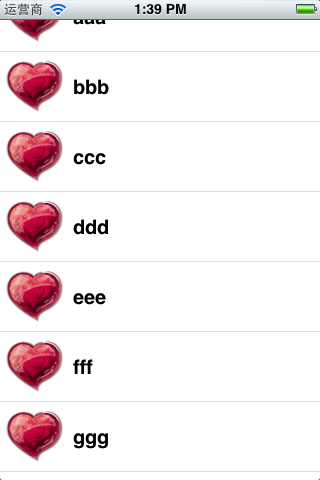
#import 

@interface PDViewController : UIViewController
//添加UITableViewDelegate,UITableViewDataSource协议
@property (strong,nonatomic) NSArray * listData;
//存储列表数据

@end

PDViewController.m:

#import "PDViewController.h"

@implementation PDViewController
@synthesize listData=_listData;

- (void)didReceiveMemoryWarning
{
    [super didReceiveMemoryWarning];
    // Release any cached data, images, etc that aren't in use.
}

#pragma mark - View lifecycle

- (void)viewDidLoad
{
    [super viewDidLoad];
    _listData=[NSArray arrayWithObjects:@"aaa",@"bbb",@"ccc",@"ddd",
               @"eee",@"fff",@"ggg",@"hhh",@"iii",@"jjj",@"kkk",@"lll",@"mmm",@"nnn",@"ooo",nil];
    // Do any additional setup after loading the view, typically from a nib.
}

- (void)viewDidUnload
{
    [super viewDidUnload];
    _listData=nil;
    // Release any retained subviews of the main view.
    // e.g. self.myOutlet = nil;
}

- (BOOL)shouldAutorotateToInterfaceOrientation:(UIInterfaceOrientation)interfaceOrientation
{
    // Return YES for supported orientations
    return (interfaceOrientation != UIInterfaceOrientationPortraitUpsideDown);
}
//下面都是实现UITableViewDelegate,UITableViewDataSource两个协议中定义的方法
-(NSInteger)tableView:(UITableView *)tableView numberOfRowsInSection:(NSInteger)section
{
    //返回行数
    return [_listData count];
}
-(UITableViewCell *)tableView:(UITableView *)tableView cellForRowAtIndexPath:(NSIndexPath *)indexPath
{//返回一行的视图
    NSUInteger row=[indexPath row];
    NSString * tableIdentifier=@"Simple table";
    UITableViewCell *cell=[tableView dequeueReusableCellWithIdentifier:tableIdentifier];
    //当一行上滚在屏幕消失时,另一行从屏幕底部滚到屏幕上,如果新行可以直接使用已经滚出屏幕的那行,系统可以避免重新创建和释放视图,同一个TableView,所有的行都是可以复用的,tableIdentifier是用来区别是否属于同一TableView
    
    if(cell==nil)
    {
       //当没有可复用的空闲的cell资源时(第一次载入,没翻页)
        cell=[[UITableViewCell alloc] initWithStyle:UITableViewCellStyleDefault reuseIdentifier:tableIdentifier];
        //UITableViewCellStyleDefault 只能显示一张图片,一个字符串,即本例样式
        //UITableViewCellStyleSubtitle 可以显示一张图片,两个字符串,上面黑色,下面的灰色
        //UITableViewCellStyleValue1 可以显示一张图片,两个字符串,左边的黑色,右边的灰色
        //UITableViewCellStyleValue2 可以显示两个字符串,左边的灰色,右边的黑色
        
    }
    cell.textLabel.text=[_listData objectAtIndex:row];//设置文字
    UIImage *image=[UIImage imageNamed:@"57"];//读取图片,无需扩展名
    cell.imageView.image=image;//文字左边的图片
//    cell.detailTextLabel.text=@"详细描述"; 适用于Subtitle,Value1,Value2样式
//    cell.imageView.highlightedImage=image; 可以定义被选中后显示的图片
    return cell;
}
- (NSIndexPath *)tableView:(UITableView *)tableView willSelectRowAtIndexPath:(NSIndexPath *)indexPath
{//被选中前执行
    if ([indexPath row]==0) {
        //第一项不可选
        return nil;
    }
    return indexPath;
}
- (void)tableView:(UITableView *)tableView didSelectRowAtIndexPath:(NSIndexPath *)indexPath
{//被选中后执行
    NSString * string=[_listData objectAtIndex:[indexPath row]];
    //取出被选中项的文字
    UIAlertView *alert=[[UIAlertView alloc] initWithTitle:@"提示" message:string delegate:self cancelButtonTitle:@"确定" otherButtonTitles: nil];
    [alert show];
}
-(CGFloat)tableView:(UITableView *)tableView heightForRowAtIndexPath:(NSIndexPath *)indexPath
{
    //返回每行的高度
    //CGFloat就是float
    return 70.0;
}
/*
 其他可能常用的方法:
 - (CGFloat)tableView:(UITableView *)tableView heightForHeaderInSection:(NSInteger)section;
 - (CGFloat)tableView:(UITableView *)tableView heightForFooterInSection:(NSInteger)section
 以上分别返回table头和尾的高度
 
 - (UIView *)tableView:(UITableView *)tableView viewForHeaderInSection:(NSInteger)section;  
 - (UIView *)tableView:(UITableView *)tableView viewForFooterInSection:(NSInteger)section; 
 上面两方法可以自定义table头和尾
 
 */

@end

中介绍了UIPickerView的用法,当时选择的两组数据是没有任何关联的,可以任意组合,下面介绍限制的方法,就是第一个选择器的每个选项,都有不同的子选项。代码大部分与前文相似,只是实现了UIPickerViewDelegate协议中的-(void)pickerView:(UIPickerView *)pickerView didSelectRow:(NSInteger)row inComponent:(NSInteger)component方法,这个方法会在选择操作后触发,当用户在第一个选择器选择时,就会触发这个方法,我们在这个方法中重新载入第二个选择器的数据,即可。下面的代码与原教程有些不同,但思路是一样的。 viewController.h:

#import 

@interface BIDDependentComponentPickerViewController : UIViewController

@property (strong,nonatomic) NSArray * type1;
//存储第一个选择器的数据
@property (strong,nonatomic)NSArray * subtype;
//存储第二个选择器的数据,这个随着第一个选择器被选中的值而改变
@property (strong,nonatomic) NSArray * subtype1;
@property(strong,nonatomic)NSArray * subtype2;
@property (strong,nonatomic)NSArray * subtype3;
//上面三个用于存储第二个选择器的数据,根据第一个选择器选定的值,调用其中一个赋值给subtype
@property (strong, nonatomic) IBOutlet UIPickerView *dependentPicker;
- (IBAction)buttonPressed;

@end

viewController.m:

#import "BIDDependentComponentPickerViewController.h"

@implementation BIDDependentComponentPickerViewController
@synthesize dependentPicker;
@synthesize type1=_type1;
@synthesize subtype1=_subtype1;
@synthesize subtype2=_subtype2;
@synthesize subtype3=_subtype3;
@synthesize subtype=_subtype;

- (id)initWithNibName:(NSString *)nibNameOrNil bundle:(NSBundle *)nibBundleOrNil
{
    self = [super initWithNibName:nibNameOrNil bundle:nibBundleOrNil];
    if (self) {
        // Custom initialization
    }
    return self;
}

- (void)didReceiveMemoryWarning
{
    // Releases the view if it doesn't have a superview.
    [super didReceiveMemoryWarning];
    
    // Release any cached data, images, etc that aren't in use.
}

#pragma mark - View lifecycle

- (void)viewDidLoad
{
    [super viewDidLoad];
    NSArray *array=[NSArray arrayWithObjects:@"a",@"b",@"c", nil];
    _type1=array;
    NSArray *subarr1=[NSArray arrayWithObjects:@"aa",@"aaa",@"aaaa", nil];
    _subtype1=subarr1;
    NSArray *subarr2=[NSArray arrayWithObjects:@"bb",@"bbb",@"bbbb", nil];
    _subtype2=subarr2;
    NSArray *subarr3=[NSArray arrayWithObjects:@"cc",@"ccc",@"cccc", nil];
    _subtype3=subarr3;
    _subtype=subarr1;


    // Do any additional setup after loading the view from its nib.
}

- (void)viewDidUnload
{
    [self setDependentPicker:nil];
    _subtype1=nil;
    _subtype2=nil;
    _subtype3=nil;
    _type1=nil;
    _subtype=nil;
    [super viewDidUnload];
    // Release any retained subviews of the main view.
    // e.g. self.myOutlet = nil;
}

- (BOOL)shouldAutorotateToInterfaceOrientation:(UIInterfaceOrientation)interfaceOrientation
{
    // Return YES for supported orientations
    return (interfaceOrientation == UIInterfaceOrientationPortrait);
}

- (IBAction)buttonPressed {
}

-(NSInteger)numberOfComponentsInPickerView:(UIPickerView *)pickerView
{
    return 2;
}
-(NSInteger)pickerView:(UIPickerView *)pickerView numberOfRowsInComponent:(NSInteger)component
{
    if (component==0) {
        return [_type1 count];
    }
    return [_subtype count];
}
-(NSString *)pickerView:(UIPickerView *)pickerView titleForRow:(NSInteger)row forComponent:(NSInteger)component
{
    if(component==0)
        return [_type1 objectAtIndex:row];
    
    return [_subtype objectAtIndex:row];
    
}
-(void)pickerView:(UIPickerView *)pickerView didSelectRow:(NSInteger)row inComponent:(NSInteger)component
{
    if(component==0)
    {
        if (row==0) {
            _subtype=_subtype1;
        }else if(row==1)
        {
            _subtype=_subtype2;
        }else{
            _subtype=_subtype3;
        }
        
        [dependentPicker selectRow:0 inComponent:1 animated:YES];
        //使第二个选择器选中第一项,并且开启动画效果
        //如果没有上面这句,即便第一个选择器选项已经改变,第二个选择器的selectedRow还是不会变
        
        [dependentPicker reloadComponent:1];
        //重新载入第二个选择器
        
    }
    
    
}

@end

先看效果图: 请无视下面的tab Bar,下面的代码跟它无关。 第一步,在xib文件添加一个UIPickerView,和一个Round Rect Button,如图上所示。 第二步,在编辑UI的窗口中,选中UIPickerView,打开Connection inspector,按住Control键,分别拖动dataSource和delegate右边的小圈到左边Placeholders下的File’s Owner(新版的XCode就是View Controller),建立连接。 第三步,按住control键,拖动UIPickerView到ViewController.h文件中,创建outlet,同样的方法为按钮创建action viewController.h代码如下:

#import 

#define kFillingComponent 0
#define kBreadComponent 1
@interface DoubleComponentPickerViewController : UIViewController

//必须添加这两个协议
@property (strong, nonatomic) IBOutlet UIPickerView *doublePickers;
@property (strong,nonatomic) NSArray *fillingTypes;
@property (strong,nonatomic) NSArray *breadTypes;
//两个array用于存储两个选择器的选项
- (IBAction)buttonPressed;
@end

viewController.m内容如下:

#import "DoubleComponentPickerViewController.h"

@implementation DoubleComponentPickerViewController
@synthesize doublePickers;
@synthesize fillingTypes=_fillingTypes,breadTypes=_breadTypes;

- (id)initWithNibName:(NSString *)nibNameOrNil bundle:(NSBundle *)nibBundleOrNil
{
    self = [super initWithNibName:nibNameOrNil bundle:nibBundleOrNil];
    if (self) {
        // Custom initialization
    }
    return self;
}

- (void)viewDidLoad
{
    [super viewDidLoad];
    NSArray *fillingArray=[[NSArray alloc] initWithObjects:@"aaa",@"bbb",@"ccc",@"ddd", nil];
    _fillingTypes=fillingArray;
    NSArray *breadArray=[[NSArray alloc] initWithObjects:@"111",@"222",@"333",@"444", nil];
    _breadTypes=breadArray;
//启动时载入数组
}

- (void)viewDidUnload
{
    [self setDoublePickers:nil];
    [super viewDidUnload];
    _fillingTypes=nil;
    _breadTypes=nil;
    //关闭时清空
    // Release any retained subviews of the main view.
    // e.g. self.myOutlet = nil;
}

- (BOOL)shouldAutorotateToInterfaceOrientation:(UIInterfaceOrientation)interfaceOrientation
{
    // Return YES for supported orientations
    return (interfaceOrientation == UIInterfaceOrientationPortrait);
}

- (IBAction)buttonPressed {
    NSInteger * fillingRow=[doublePickers selectedRowInComponent:kFillingComponent];
    NSInteger * breadRow=[doublePickers selectedRowInComponent:kBreadComponent];
    NSString *string=[NSString stringWithFormat:@"%@ %@",[_fillingTypes objectAtIndex:fillingRow],[_breadTypes objectAtIndex:breadRow]];
    NSLog(@"%@",string);
    //读取选择的结果
    
}
//下面的方法都是协议中定义的
-(NSInteger)numberOfComponentsInPickerView:(UIPickerView *)pickerView
{
    return 2;
    //定义选择器数量
}
-(NSInteger)pickerView:(UIPickerView *)pickerView numberOfRowsInComponent:(NSInteger)component
{
    if(component==kBreadComponent)
        return [_breadTypes count];
    return [_fillingTypes count];
    //选项数量
}
-(NSString *)pickerView:(UIPickerView *)pickerView titleForRow:(NSInteger)row forComponent:(NSInteger)component
{
    
    if(component==kBreadComponent)
        
        return [_breadTypes objectAtIndex:row];
    
    return [_fillingTypes objectAtIndex:row];
    //选项的文字
    
}
@end

如果只要一个选择器,更简章,稍做修改就可实现。

1、新建一个Empty Application,只选Use Automatic Reference Counting,Use Core Data和Include Unit Tests不选。 2、Command+N 新建文件,选Cocoa Touch UIViewController subclass,SubClass of UIViewController,勾选with XIB for user interface(当然你也可以再建)。我这输的名字是MainViewController,最终生成MainViewController.h MainViewController.m MainViewController.xib三个文件。 3、打开(前缀)AppDelegate.h,代码如下:

#import 
#import "MainViewController.h"
@interface BIDAppDelegate : UIResponder 

@property (strong, nonatomic) UIWindow *window;
@property (strong,nonatomic) MainViewController * controller;

@end

AppDelegate.m,修改(BOOL)application:(UIApplication *)application didFinishLaunchingWithOptions:(NSDictionary *)launchOptions 方法:

- (BOOL)application:(UIApplication *)application didFinishLaunchingWithOptions:(NSDictionary *)launchOptions
{
    self.window = [[UIWindow alloc] initWithFrame:[[UIScreen mainScreen] bounds]];
    // Override point for customization after application launch.
    self.controller= [[MainViewController alloc] initWithNibName:@"MainViewController" bundle:nil];
        
    UIView *mainView=self.controller.view;
    CGRect mainViewFrame=mainView.frame;
    mainViewFrame.origin.y+=[UIApplication sharedApplication].statusBarFrame.size.height;
    //将y座标移到状态栏下
    mainView.frame=mainViewFrame;
    [self.window addSubview:mainView];
    //载入
    
    
    self.window.backgroundColor = [UIColor whiteColor];
    [self.window makeKeyAndVisible];
    return YES;
}

4、随便在MainViewController.xib中添加个控件,运行测试。

下面的代码段来自《Beginning iOS 5 Development》第六章,是一个多view应用的例子,本想贴整个例子,但是代码实在太多。

-(IBAction)switchViews:(id)sender
{
    [UIView beginAnimations:@"View Flip" context:nil];
    //开始动画,View Flip是动画类型,对文档不是很熟,找不到所有支持的类型
    [UIView setAnimationDuration:1.5];
    //动画时间
    [UIView setAnimationCurve:UIViewAnimationCurveEaseInOut];
    //开始和结束的时候速度慢,中间速度快
    
    if(self.yellowViewController.view.superview==nil)
    {//当yellowViewController存在,且它的view被显示时,它的superview才不会等于nil
        //即,这里的代码在yellowViewController.view显示时不会执行,在blueViewController.view显示时才执行
        if(self.yellowViewController==nil)
        {//如果yellowViewController未初始化,则调用YelowView.xib文件初始化,参数中无xib扩展名
            self.yellowViewController=[[BIDYellowViewController alloc] initWithNibName:@"YellowView" bundle:nil];
        }
        [UIView setAnimationTransition:UIViewAnimationTransitionFlipFromRight forView:self.view cache:YES];
        //从右往左翻,启用缓存
        
        
        [blueViewController.view removeFromSuperview];
        [self.view insertSubview:self.yellowViewController.view atIndex:0];
        //移除blueViewController.view,并把yellowViewController.view加入self.view
        
    }else 
    {
        if(self.blueViewController==nil)
        {//在内存资源不足时,blueViewController资源可能会被系统回收,所以也需要判断
            self.blueViewController=[[BIDBlueViewController alloc] initWithNibName:@"BlueView" bundle:nil];
        }
        [UIView setAnimationTransition:UIViewAnimationTransitionCurlUp
                               forView:self.view cache:YES];
        //从下往上翻
        
        [yellowViewController.view removeFromSuperview];
        [self.view insertSubview:self.blueViewController.view atIndex:0];
        
    }
    [UIView commitAnimations];
    //标记动画结束
}