Android的动画的使用,请参考。Android的动画,在设计方面,我有点不太理解,觉得这样搞很怪,因为在控件动画后,即使设置了停留在动画结束时的位置,我们也确实看到了控件停在那个位置,但其实该控件的真实位置还是在原来动画前的那里。举个例子,如果有个Button,你给它设置了动画,让它移动到其他位置,当移动完成后,你会发现,点击Button没有任何效果,而在Button原来的位置,就是动画前的位置点击,明明没有任何控件,却看到了点击Button的效果。不知道Google为什么要这样设计。 解决思路:动画不设置结束后停留在结束位置,通过setAnimationListener方法设置动画监听器,在动画结束时,即onAnimationEnd方法中,手动用layout或者setLayoutParams方法把控件移动到动画结束的位置。 范例说明:启动时如下图,一个按钮,按钮上有一条高10像素的白条,其实这是另一个View,但是我把它Y轴设为了负,所以只能看到一部分,另一部分被隐藏在屏幕上方。  按下下拉显示按钮时,那个白色的View会以向下移动,就是下拉动画的效果,显示在屏幕上,如下图:
 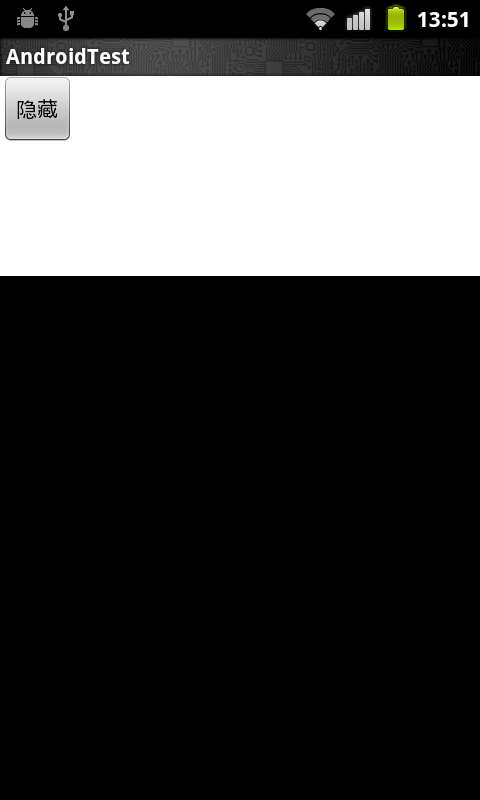 当点击隐藏后,这个View又会上拉,恢复到第一张图片的样子,显示出原来的下拉显示按钮。 源代码: 布局 main.xml:
<?xml version="1.0" encoding="utf-8"?>
<AbsoluteLayout xmlns:android="http://schemas.android.com/apk/res/android"
    android:layout_width="fill_parent" android:layout_height="fill_parent">
    <!-- 因为下面的两个LinearLayout要覆盖,就是显示的位置有重叠,所以,必须使用AbsoluteLayout,绝对布局 -->
    <LinearLayout android:orientation="vertical" android:id="@+id/main"
        android:layout_x="0dp" android:layout_y="0dp" android:layout_width="fill_parent"
        android:layout_height="fill_parent" android:weightSum="1">
        <Button android:layout_width="wrap_content" android:id="@+id/show"
            android:layout_height="wrap_content" android:text="下拉显示" />
    </LinearLayout>
    <LinearLayout android:orientation="vertical" android:id="@+id/selection"
        android:layout_x="0dp" android:layout_y="-190px" android:layout_width="fill_parent"
        android:layout_height="200px" android:background="@color/white">
        <!-- 之所以用 px作单位,是因为设置控件位置的layout方法的参数就是px单位的,单位相同方便计算
            高200,y座标-190,还有10个像素可以看到,是为了方便演示,当然,你也可以设为-200,刚好全部隐藏
        -->
        <Button android:layout_width="wrap_content" android:id="@+id/hidden"
            android:layout_height="wrap_content" android:text="隐藏" />
    </LinearLayout>
</AbsoluteLayout>
两个描述动画的xml文件,show.xml与hidden.xml: show.xml:
<?xml version="1.0" encoding="utf-8"?>
<set  xmlns:android="http://schemas.android.com/apk/res/android">
<translate
android:fromXDelta="0"
android:toXDelta="0"
android:fromYDelta="0"
android:toYDelta="190"
android:duration="1000"
 />
 <!-- 座标好像是相对控件的起始位置的,而不是相对父控件 -->
</set>
hidden.xml:
<?xml version="1.0" encoding="utf-8"?>
<set  xmlns:android="http://schemas.android.com/apk/res/android">
<translate
android:fromXDelta="0"
android:toXDelta="0"
android:fromYDelta="0"
android:toYDelta="-190"
android:duration="1000"
 />
</set>
主程序代码:
package com.test;

import android.app.Activity;
import android.os.Bundle;
import android.view.View;
import android.view.View.OnClickListener;
import android.view.animation.Animation;
import android.view.animation.AnimationUtils;
import android.view.animation.Animation.AnimationListener;
import android.widget.AbsoluteLayout;
import android.widget.Button;
import android.widget.LinearLayout;

public class AndroidTestActivity extends Activity
{
    /** Called when the activity is first created. */
    LinearLayout main, selection;
    Button hidden, show;
    @Override
    public void onCreate(Bundle savedInstanceState)
    {
        super.onCreate(savedInstanceState);
        setContentView(R.layout.main);
        main = (LinearLayout) findViewById(R.id.main);
        selection = (LinearLayout) findViewById(R.id.selection);
        hidden = (Button) findViewById(R.id.hidden);
        show = (Button) findViewById(R.id.show);
        show.setOnClickListener(new OnClickListener()
        {
            @Override
            public void onClick(View v)
            {
                // TODO Auto-generated method stub
                Animation showAnim=AnimationUtils.loadAnimation(AndroidTestActivity.this, R.anim.show);
//				translate.setFillAfter(true);
                //如果只用setFillAfter方法保存移动后的位置,真实位置不会移动
                selection.startAnimation(showAnim);
                                  //如果下面的View是一个listview,可能需要先执行selection.requestFocusFromTouch();否则第二次不会显示动画
                                 //需要把下面的控件 enable设为false,防止点中下面的控件
                show.setEnabled(false);
                //必须设为false,因为如果连续点击两次,就会连着执行两次移动位置,并不是我们想要的结果
                //等把拉下的view移回去后,再设为true
                showAnim.setAnimationListener(new AnimationListener(){

                    @Override
                    public void onAnimationEnd(Animation animation)
                    {
                        // TODO Auto-generated method stub
                        hidden.setEnabled(true);
                        //当下拉动画结束后,把隐藏的按钮设为可用
                        selection.clearAnimation();
                        selection.layout(selection.getLeft(), 0, selection.getRight(), 200);
//						selection.setLayoutParams(new AbsoluteLayout.LayoutParams(AbsoluteLayout.LayoutParams.FILL_PARENT, 200, 0, 0){});
                        //上面两行功能相同
                        //移动控件到动画结束的位置,clearAnimation方法可以清除动画,屏幕就不会闪,没有的话会闪
                        //setFillAfter不能为true,虽然即使为true,控件真实位置也不会变,但是我们看到的位置是会变的,如果再用layout方法,我们看到的位置还会再变
                        System.out.println(selection.getLeft()+" "+selection.getTop()+" "+selection.getRight()+" "+selection.getBottom());
                        //输出移动后的位置,经过测试,如果不使用layout方法移动控件,动画前,动画后,控件的位置都是不变的
                        //所以,亲眼所见并非真相
                    }
                    @Override
                    public void onAnimationRepeat(Animation animation)
                    {
                        // TODO Auto-generated method stub
                    }
                    @Override
                    public void onAnimationStart(Animation animation)
                    {
                        // TODO Auto-generated method stub
                        System.out.println(selection.getLeft()+" "+selection.getTop()+" "+selection.getRight()+" "+selection.getBottom());
                    }});
            }
        });
        hidden.setOnClickListener(new OnClickListener(){

            @Override
            public void onClick(View v)
            {
                // TODO Auto-generated method stub
                Animation hiddenAnim=AnimationUtils.loadAnimation(AndroidTestActivity.this, R.anim.hidden);
                selection.startAnimation(hiddenAnim);
                hidden.setEnabled(false);
                hiddenAnim.setAnimationListener(new AnimationListener(){

                    @Override
                    public void onAnimationEnd(Animation animation)
                    {
                        // TODO Auto-generated method stub
                        show.setEnabled(true);
                        selection.clearAnimation();
//						selection.layout(selection.getLeft(), -190, selection.getRight(), 10);
                        selection.setLayoutParams(new AbsoluteLayout.LayoutParams(AbsoluteLayout.LayoutParams.FILL_PARENT, 200, 0, -190){});
                        //以上两行,功能相同
                    }

                    @Override
                    public void onAnimationRepeat(Animation animation)
                    {
                        // TODO Auto-generated method stub

                    }

                    @Override
                    public void onAnimationStart(Animation animation)
                    {
                        // TODO Auto-generated method stub

                    }});


            }});

    }
}
源代码就不传了,基本上都在上面了,除了一个定义白色的strings.xml