0%

InputMethodManager imm = (InputMethodManager)getSystemService(Context.INPUT_METHOD_SERVICE);  
//得到InputMethodManager的实例
if (imm.isActive()) {
//如果开启
imm.toggleSoftInput(InputMethodManager.SHOW_IMPLICIT, InputMethodManager.HIDE_NOT_ALWAYS); 
//关闭软键盘,开启方法相同,这个方法是切换开启与关闭状态的
}

另外还有单独的开启及关闭方法: hideSoftInputFromWindow(IBinder windowToken, int flags) showSoftInput(View view, int flags) IBinder参数可以通过EditText view的getWindowToken()方法来取到,如

imm.hideSoftInputFromWindow(search_key.getWindowToken(),InputMethodManager.HIDE_NOT_ALWAYS) ;

隐藏的flags参数有HIDE_NOT_ALWAYS和HIDE_NOT_ALWAYS两种,显示的flags参数有SHOW_FORCED,SHOW_IMPLICIT两种,isActive()方法有时好像不太好用,我在项目中使用时返回的一直是true

通过CursorAdapter这个适配器,AutoCompleteTextView可以直接与sqlite数据库绑定,而不用在程序中预先添加匹配数据。并且,通过sql的like关键字,可以实现模糊查询,非首字母查询。 贴上代码:

SQLiteDatabase sqlite = this.openOrCreateDatabase("data", 0, null);
//连接数据库
AutoCompleteTextView actv=(AutoCompleteTextView) findViewById(R.id.actv);
//不解释
actv.setThreshold(1);
//输入一个字符即开始匹配
String[] trainColumns = new String[] {"train_no", "id as _id" };
//欲查询匹配的列放第一,查询结果必须有_id列,因我的表中没有,所以把id as成_id,实践证明,其实随便哪个字段都可以as _id,不用主键,这里也可以train_no as _id.
trainAdpter trainadpter = new trainAdpter(this, null, 0);
//实例化自定义的适配器,代码在下面
actv.setAdapter(trainadpter);
//绑定适配器

private class trainAdpter extends CursorAdapter {
        private int columnIndex;

        public trainAdpter(Context context, Cursor c, int col) {
            super(context, c);
            this.columnIndex = col;
        }

        @Override
        public View newView(Context context, Cursor cursor, ViewGroup parent) {
            final LayoutInflater inflater = LayoutInflater.from(context);
            final TextView view = (TextView) inflater.inflate(android.R.layout.simple_dropdown_item_1line, parent, false);
            return view;
        }

        @Override
        public void bindView(View view, Context context, Cursor cursor) {
            ((TextView) view).setText(cursor.getString(columnIndex));
        }

        @Override
        public String convertToString(Cursor cursor) {
            Log.i("info", " convertToString ");
            return cursor.getString(columnIndex);
        }

        @Override
        public Cursor runQueryOnBackgroundThread(CharSequence constraint) {
            if (constraint != null) {
                String selection = "train_no like \'%" + constraint.toString() + "%\' limit 100";
                System.out.println(selection);
                return sqlite.query("train", trainColumns, selection, null, null, null, null);
                //从表train查询
            } else {
                return null;
            }
        }
    }

今天在给一个AutoCompleteTextView绑定数据库的时候,提示column ‘_id’ does not exist,仔细查了一下代码,我好像没写_id这一例,网上查了一下得知,这个列是必须有的。所以解决方法就有两种,一是在建数据库的时候直接就建一个,另一个方法就是把原来的主键 as _id就OK。如:

String[] columns = new String[] { "id as _id" };

在Expression Blend 中,如果要使用Silverlight for Windows Phone Toolkit,需要重新添加引用(即使你已经在VS里引用),VS里使用Silverlight for Windows Phone Toolkit请参考Windows Phone 7下拉菜单的实现 Silverlight for Windows Phone Toolkit中ListPicker的使用。 下载安装完Silverlight for Windows Phone Toolkit后,用Expression Blend打开需要编辑的项目,按Alt+Shift+R,找到Microsoft.Phone.Controls.Toolkit.dll,我的在C:\Program Files (x86)\Microsoft SDKs\Windows Phone\v7.1\Toolkit\Aug11\Bin目录,一般都在这里,如果是32位系统,稍有不同。 OK,现在Expression Blend可以使用所有Toolkit里的功能了

不得不说,WP7开发的资料真的是太少了,国内有句话叫“天下文章一大抄”,查Application.GetResourceStream的用法,找遍了整个网络,无非就那一两篇,而且写得还不完整,包括微软官方的例子。在花了近半天的时间后,终于解决问题。 我们可以预先把程序中用到的资源,如图片,音乐等放入项目中,打包进XAP文档,需要的时候从中调用。下面就说说具体实现方法。 第一步,把数据存进项目。 1、右键点击项目名称-添加-新建文件夹(英文版请自行翻译),这里文件夹名以image为例,把需要的图片拖进来,当然你也可以不建,直接把图片拖到项目项目录下,但为了整洁,建议还是建一下。 2、选中刚刚拖进去的图片,看右下角的属性标签,如果没有,右键点图片,选属性。生成操作选Resource. 第二步,程序调用。

System.IO.Stream src = Application.GetResourceStream(new Uri("/PhoneApp4;component/image/a.png", UriKind.Relative)).Stream;

关键在Uri的格式,PhoneApp4是项目名称,component是固定路径,image/a.jpg才是图片资源相对路径,得到的是Stream,在微软官方的例子中,使用下面的方法来转换成图片:

            BitmapImage bi = new BitmapImage();
            bi.SetSource(src);
            Image img = new Image();
            img.Source = bi;

网上的文章基本上都没写第一步,我就卡在这里,添加图片还好说,但是属性的生成操作没设置,导致在使用的时候抛异常。

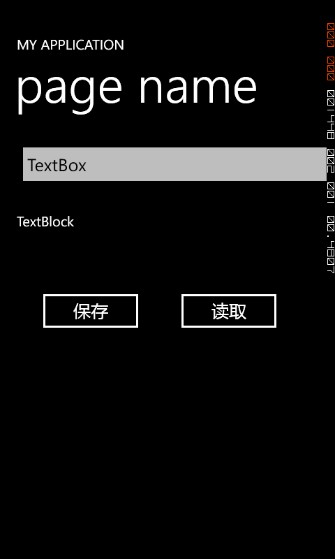
WP7在设计的时候确实比较封闭,应用程序没有直接操作闪存的权限,读取文件只能在系统专为该应用设定的目录内。虽然现在WP7上也有文件管理器,但都不是很完美,比如我的i917,在升了7712以后,网上所有的文件管理器都没用。 布局比较简单,上个图吧,代码就不贴了,下面再加上打包的源代码。 解释一下,TextBox用于输入保存到文件的内容,TextBlock用于显示读取到的文件内容。WP7的IsolatedStorage没有文件大小配额限制 C# 代码:

using System;
using System.Collections.Generic;
using System.Linq;
using System.Net;
using System.Windows;
using System.Windows.Controls;
using System.Windows.Documents;
using System.Windows.Input;
using System.Windows.Media;
using System.Windows.Media.Animation;
using System.Windows.Shapes;
using Microsoft.Phone.Controls;
using System.Runtime.Serialization;
using System.IO;
using System.Runtime.Serialization.Json;
using System.Text;
using System.Collections;
using System.IO.IsolatedStorage;

namespace PhoneApp4
{
    public partial class MainPage : PhoneApplicationPage
    {
        // Constructor
        public MainPage()
        {
            InitializeComponent();
        }


        private void button1_Click_1(object sender, RoutedEventArgs e)
        {
            IsolatedStorageFile store = IsolatedStorageFile.GetUserStoreForApplication();
            store.CreateDirectory("image");
            //创建image目录
            IsolatedStorageFileStream storeStream = new IsolatedStorageFileStream("image\\a.txt", FileMode.OpenOrCreate, store);
            //打开或创建(不存在)文件,得到流
            //也可以使用 IsolatedStorageFileStream storeStream  = store.OpenFile("image\\a.txt", System.IO.FileMode.OpenOrCreate, System.IO.FileAccess.ReadWrite);
            StreamWriter sw = new StreamWriter(storeStream);
            sw.WriteLine(textBox1.Text);
            //写入
            sw.Close();
            //关闭流

        }

        private void button2_Click(object sender, RoutedEventArgs e)
        {
            IsolatedStorageFile store = IsolatedStorageFile.GetUserStoreForApplication();
            IsolatedStorageFileStream storeStream = new IsolatedStorageFileStream("image\\a.txt", FileMode.OpenOrCreate, store);
            StreamReader sd = new StreamReader(storeStream);
            //读取流
            textBlock1.Text=sd.ReadLine();
            //前面写的时候只写了一行,所以不用循环了
            //多行可以用ReadToEnd()方法
            sd.Close();
            //关闭流
        }


    }
}

源码打包: [download id=”25”]

如果TextBox只能输入数字,比如说金额、QQ号码等,在用户点击TextBox进行输入时,我们可以定制软键盘样式,弹出数字键盘,这样可以大大方便用户。

            <TextBox Height="76" HorizontalAlignment="Left" Margin="51,229,0,0" Name="textBox1" Text="" VerticalAlignment="Top" Width="351" >
                <TextBox.InputScope>
                    <InputScope>
                        <InputScopeName NameValue="Digits"></InputScopeName>
                    </InputScope>
                </TextBox.InputScope>
            </TextBox>

NameValue的值Digits就是数字键盘,更多类型在Visual Studio中有提示

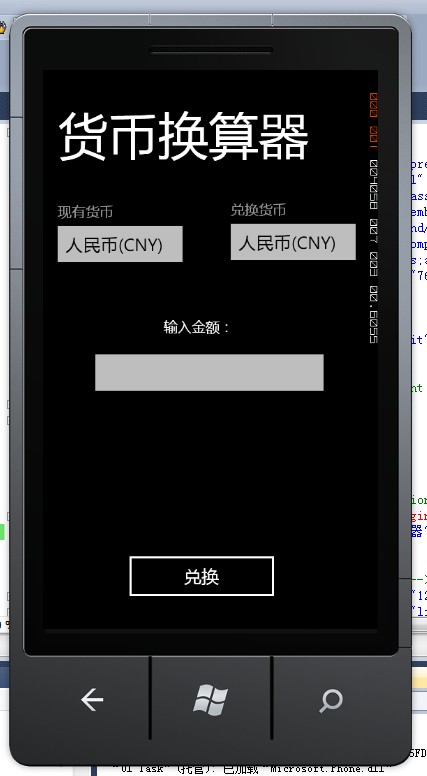
这个实例是利用前文提到的汇率API(http://xurrency.com/)实现货币转换,因为该API免费用户每天10次的限制,本程序其实是没有什么实用性的,当然,你可以考虑购买他们的服务,好像每年29.99欧元(老外的钱比较好赚)。在Windows Phone 7上解析JSON跟普通的桌面程序有些不同,因为命名空间System.Runtime.Serialization.Json不在System.Runtime.Serialization里,而是在System.Servicemodel.Web里,所以在添加引用的时候必须同时引用System.Runtime.Serialization和System.Servicemodel.Web。 上个UI效果图: xaml布局代码:
<phone:PhoneApplicationPage 
    x:Class="PhoneApp1.MainPage"
    xmlns="http://schemas.microsoft.com/winfx/2006/xaml/presentation"
    xmlns:x="http://schemas.microsoft.com/winfx/2006/xaml"
    xmlns:phone="clr-namespace:Microsoft.Phone.Controls;assembly=Microsoft.Phone"
    xmlns:shell="clr-namespace:Microsoft.Phone.Shell;assembly=Microsoft.Phone"
    xmlns:d="http://schemas.microsoft.com/expression/blend/2008"
    xmlns:mc="http://schemas.openxmlformats.org/markup-compatibility/2006"
    xmlns:toolkit="clr-namespace:Microsoft.Phone.Controls;assembly=Microsoft.Phone.Controls.Toolkit"
    mc:Ignorable="d" d:DesignWidth="480" d:DesignHeight="768"
    FontFamily="{StaticResource PhoneFontFamilyNormal}"
    FontSize="{StaticResource PhoneFontSizeNormal}"
    Foreground="{StaticResource PhoneForegroundBrush}"
    SupportedOrientations="Portrait" Orientation="Portrait"
    shell:SystemTray.IsVisible="True">

    <!--LayoutRoot is the root grid where all page content is placed-->
    <Grid x:Name="LayoutRoot" Background="Transparent">
        <Grid.RowDefinitions>
            <RowDefinition Height="Auto"/>
            <RowDefinition Height="*"/>
        </Grid.RowDefinitions>

        <!--TitlePanel contains the name of the application and page title-->
        <StackPanel x:Name="TitlePanel" Grid.Row="0" Margin="12,17,0,28">
            <TextBlock x:Name="PageTitle" Text="货币换算器" Margin="9,-7,0,0" Style="{StaticResource PhoneTextTitle1Style}"/>
        </StackPanel>

        <!--ContentPanel - place additional content here-->
        <Grid x:Name="ContentPanel" Grid.Row="1" Margin="12,0,12,0">
            <toolkit:ListPicker Header="现有货币"  Name="listPicker1" Margin="9,22,268,475">
            </toolkit:ListPicker>
            <toolkit:ListPicker Header="兑换货币" Margin="257,19,20,486" Name="listPicker2">
            </toolkit:ListPicker>
            <TextBlock Height="36" HorizontalAlignment="Left" Margin="161,187,0,0" Name="textBlock1" Text="输入金额:" VerticalAlignment="Top" Width="143" />
            <TextBox Height="76" HorizontalAlignment="Left" Margin="51,229,0,0" Name="textBox1" Text="" VerticalAlignment="Top" Width="351" />

            <TextBlock Height="110" HorizontalAlignment="Left" Margin="28,348,0,0" Name="textBlock2" Text="" VerticalAlignment="Top" Width="408" />
            <Button Content="兑换" HorizontalAlignment="Left" Margin="100,518,0,35" Name="button1" Width="231" Click="button1_Click" />
            <ProgressBar Height="28" HorizontalAlignment="Left" Margin="7,368,0,0" Name="progressBar1" VerticalAlignment="Top" Width="441" Foreground="Green" Visibility="Collapsed"  IsIndeterminate="True" />
        </Grid>
    </Grid>
 

</phone:PhoneApplicationPage>

两个ListPicker 两个TextBlock,一个TextBox,一个Button,一个ProgressBar,ListPicker的使用请参考Windows Phone 7下拉菜单的实现 Silverlight for Windows Phone Toolkit中ListPicker的使用 C#代码:

using System;
using System.Collections.Generic;
using System.Linq;
using System.Net;
using System.Windows;
using System.Windows.Controls;
using System.Windows.Documents;
using System.Windows.Input;
using System.Windows.Media;
using System.Windows.Media.Animation;
using System.Windows.Shapes;
using Microsoft.Phone.Controls;
using System.IO;
using System.Text;
using System.Runtime.Serialization.Json;
using System.Runtime.Serialization;


namespace PhoneApp1
{
    public partial class MainPage : PhoneApplicationPage
    {
        // Constructor
        string[] codeList;
        string[] nameList;
        public MainPage()
        {
            InitializeComponent();
            nameList = new string[19]{ "人民币", "欧元", "美元", "英镑", "澳元", "港币", "日元", "新台币", "加拿大元", "韩元", "瑞士法郎", "丹麦克朗", "印度卢比", "新西兰元", "新加坡元", "泰铢", "南非兰特", "斯里兰卡卢比", "马来西亚林吉特" };
            codeList = new string[19]{ "cny", "eur", "usd", "gbp","aud", "hdk", "jpy", "twd", "cad", "krw", "chf", "dkk", "inr", "nzd", "sgd", "thb", "zar", "lkr", "myr" };
            //定义两数组,一个存中文货币名,一个存英文代码
            for (int i = 0; i < nameList.Length; i++)
            {
                listPicker1.Items.Add(nameList[i] + "(" + codeList[i].ToUpper() + ")");
                listPicker2.Items.Add(nameList[i] + "(" + codeList[i].ToUpper() + ")");
            }
            //填充两个ListPicker
            //ListPicker并不是Windows Phone 7标准控件,使用方法请参考 http://www.pocketdigi.com/20110910/466.html
        }

        [DataContract(Namespace = "http://www.pocketdigi.com")]
        public class Currency
        //不public会抛System.Security.SecurityException异常
        {
            [DataMember(Order = 0)]
            public result result { get; set; }
            [DataMember(Order = 1)]
            public int code { get; set; }
            [DataMember(Order = 2)]
            public string status { get; set; }

        }
        [DataContract(Namespace = "http://www.pocketdigi.com")]
        public class result
        {
            [DataMember(Order = 0)]
            public string updated_at { get; set; }
            [DataMember(Order = 1)]
            public float value { get; set; }
            [DataMember(Order = 2)]
            public string target { get; set; }
            [DataMember(Order = 3)]
            public string Base { get; set; }

        }
        //与前文 C# 解析与生成JSON http://www.pocketdigi.com/20110921/484.html 相同

        //定义序列化方法,这里用不着
        //private static string Serialize(Currency currency)
        //{
        //    using (MemoryStream ms = new MemoryStream())
        //    {
        //        DataContractJsonSerializer serializer = new DataContractJsonSerializer(typeof(Currency));
        //        serializer.WriteObject(ms, currency);
        //        ms.Position = 0;

        //        using (StreamReader reader = new StreamReader(ms))
        //        {
        //            return reader.ReadToEnd();
        //        }
        //    }
        //}

        //定义反序列化方法
        private static Currency Deserialize(string jsonString)
        {
            using (MemoryStream ms = new MemoryStream(Encoding.Unicode.GetBytes(jsonString)))
            {
                DataContractJsonSerializer serializer = new DataContractJsonSerializer(typeof(Currency));
                return (Currency)serializer.ReadObject(ms);
            }
        }


        private void button1_Click(object sender, RoutedEventArgs e)
        {
            progressBar1.Visibility = Visibility.Visible;
            //显示进度条
            WebClient webClient = new WebClient();
            webClient.DownloadStringCompleted +=new DownloadStringCompletedEventHandler(webClient_DownloadStringCompleted);
            //添加下载完成事件处理器,在异步数据下载完成时触发
            
            string url = "http://xurrency.com/api/"+codeList[listPicker1.SelectedIndex]+"/"+codeList[listPicker2.SelectedIndex]+"/"+textBox1.Text;
            webClient.DownloadStringAsync(new Uri(url));
        }
        private void webClient_DownloadStringCompleted(Object sender, DownloadStringCompletedEventArgs e)
        {
            string result = e.Result;
            result=result.Replace("base", "Base");
            //base是c#关键字,必须替换
            var mStream = new MemoryStream(Encoding.UTF8.GetBytes(result));
            DataContractJsonSerializer serializer = new DataContractJsonSerializer(typeof(Currency));
            Currency readCurrency = (Currency)serializer.ReadObject(mStream);
            //反序列化,得到Currency类实例
            textBlock2.Text = readCurrency.result.value.ToString();
            textBlock2.Text += "\n汇率更新时间:\n";
            textBlock2.Text += readCurrency.result.updated_at;
            //更新UI

            progressBar1.Visibility = Visibility.Collapsed;
            //隐藏进度条
        }


    }
}

最后附上源码: [download id=”24”]
介绍一下今天的实例,实例是调用一个汇率API(http://xurrency.com/)来实现货币转换,该API返回的就是JSON数据。但是免费用户使用该API有每天使用10次的限制,所以可能您在测试的时候返回错误,是因为达到了限制。 解析与生成JSON需要System.Runtime.Serialization.Json命名空间,但得先从菜单添加引用”System.Runtime.Serialization”。Windows Phone 7上稍有不同,参考:Windows Phone 7解析Json实例 货币转换小程序源码下载 代码:

using System;
using System.Collections.Generic;
using System.Linq;
using System.Text;
using System.Runtime.Serialization.Json;
using System.Runtime.Serialization;
using System.IO;
using System.Net;

namespace Json
{
    class Program
    {

        [DataContract(Namespace = "http://www.pocketdigi.com")]
        public class Currency
   
        {
            [DataMember(Order = 0)]
            public result result { get; set; }
            [DataMember(Order = 1)]
            public int code { get; set; }
            [DataMember(Order = 2)]
            public string status { get; set; }

        }
        [DataContract(Namespace = "http://www.pocketdigi.com")]
        public class result
        {
            [DataMember(Order = 0)]
            public string updated_at { get; set; }
            [DataMember(Order = 1)]
            public float value { get; set; }
            [DataMember(Order = 2)]
            public string target { get; set; }
            [DataMember(Order = 3)]
            public string Base { get; set; }
            //返回的是base,但因base是c#关键字,这里用Base代替,在下面拿到api返回数据时也替换成Base

        }
        //API反回的结果形似:{"result":{"updated_at":"2011-09-21T09:04:00Z","value":637.92,"target":"cny","base":"usd"},"code":0,"status":"ok"}
        //定义两个类,一个为Currency,包括返回的所有信息,一个为result类,包括updated_at,value,target,base

        static void Main(string[] args)
        {
            var currency = new Currency()
            {
                result = new result() { updated_at = "2011-09-14T14:03:00Z", value = 639.478f, target = "CNY", Base = "USD" },
                code = 0,
                status = "OK"

            };
            //通过传入参数实例化一个Currency类
            var serializer = new DataContractJsonSerializer(typeof(Currency));
            var stream = new MemoryStream();
            serializer.WriteObject(stream, currency);
            //序列化,并写入到stream

            byte[] dataBytes = new byte[stream.Length];
            stream.Position = 0;
            stream.Read(dataBytes, 0, (int)stream.Length);
            string dataString = Encoding.UTF8.GetString(dataBytes);
            //从stream读入到string,即生成JSON
            Console.WriteLine("JSON string is:");
            Console.WriteLine(dataString);

            //string s="{\"result\":{\"updated_at\":\"2011-09-14T14:03:00Z\",\"value\":639.47,\"target\":\"cny\",\"Base\":\"usd\"},\"code\":0,\"status\":\"ok\"}";

            WebClient webClient = new WebClient();
            string s = webClient.DownloadString("http://xurrency.com/api/usd/cny/100");
            //下载API返回数据,因为API每天每IP限制调用10次,所以超过10次会返回错误
            //api调用方法 http://xurrency.com/api/原货币小写代码/目标货币小写代码/数额
            s = s.Replace("base", "Base");
            //因为base是C#关键字, 所以替换一下
            Console.WriteLine(s);
            //输出API返回字符串

            var mStream = new MemoryStream(Encoding.UTF8.GetBytes(s));
            DataContractJsonSerializer serializer2 = new DataContractJsonSerializer(typeof(Currency));
            Currency readCurrency = (Currency)serializer2.ReadObject(mStream);
            //反序列化成Currency类实例
            Console.WriteLine(readCurrency.result.value);
            //读取value值

        }
    }


}