0%

两种方法分别采用HttpClient和URLConnection,同时解决乱码问题。经真机测试,好像是HttpClient方式比较稳定,一般都能下载到,但是URLConnection在EDGE网络下经常下不到数据。 HttpClient方式:

    public String getHtml(String url) throws IOException, URISyntaxException{
        URI u=new URI(url);
        DefaultHttpClient httpclient = new DefaultHttpClient(); 
        HttpGet httpget = new HttpGet(u);   
        ResponseHandler responseHandler = new BasicResponseHandler();   
        String content = httpclient.execute(httpget, responseHandler);   
        content = new String(content.getBytes("ISO-8859-1"),"UTF-8");
                          //目标页面编码为UTF-8,没这个会乱码

        return content;		
    }

也可以用httpget.getParams().setParameter(HttpMethodParams.HTTP_CONTENT_CHARSET,"GB2312"); 在发送请求时设置编码 URLConnection方式:

    public String getHTML(String url)
    {
    try{
    URL newUrl=new URL(url);
    URLConnection connect=newUrl.openConnection();
    connect.setRequestProperty("User-Agent", "Mozilla/4.0 (compatible; MSIE 5.0; Windows NT; DigExt)");
    DataInputStream dis=new DataInputStream(connect.getInputStream());
    BufferedReader in = new BufferedReader(new InputStreamReader(dis,"UTF-8"));//目标页面编码为UTF-8
    String html="";
    String readLine=null;
    while((readLine=in.readLine())!=null)
    {
    html=html+readLine;
    }
    in.close();
    return html;
    }catch(MalformedURLException me){
    }
    catch(IOException ioe){
    }
    return null;
    }
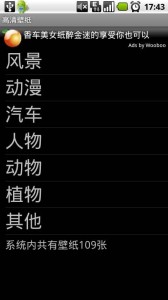

这个软件是我学习Android编程一个多月的成果。市场上同类软件很多,当然想到要做这么一个壁纸软件,是因为市场上的软件带的壁纸大都只适合HVGA分辨率,这种壁纸在我自己的手机上(MOTO Milestone)效果很差,图片模糊,于是就有了这么一个想法。本软件收集的都是960X854分辨率的壁纸,FWVGA屏幕(Milestone、Droid、X10、Droid2、Droid X等等)显示完美,WVGA屏幕支持也不错(多余的54个像素会自动裁掉)。从0.4版开始,对HVGA屏幕做了优化,下载后会自动缩小,不再像以前那样只显示中间一块。壁纸图片都存在网络上,所以如果您没有开上网套餐,或是没开WIFI,不建议您使用本软件下载壁纸。一张壁纸体积约在150KB左右(HVGA屏幕也一样,因为是下载后再缩小),缩略图在5KB左右。 本文不再更新,请访问官方网站:http://www.fwvga.com下载最新版本 测试机型: FWVGA:MOTO Milestone WVGA、HVGA: 模拟器 先看下效果图吧。 从0.4版开始,启动FWGA.COM作为官方网站,本站不再更新 0.4版 新特性预告: 优化HVGA屏幕支持 国际化,增加英文、繁体中文支持,默认语言改为英文 下载统计(这个大家在UI上看不到,主要是为后续版本下载排名功能服务) 增加下载进度条 不再强制升级 增加缓存,第二次打开列表不用下载缩略图,节省流量 0.3版 2010年9月10日更新 新版特性: 提示系统内壁纸总数 服务器维护提示 修正翻页错误 强制竖屏 下载地址:[download id=”7”] HDWallPaper 0.2版 2010年9月5日更新: 添加自动更新功能 点此下载 预览版下载 [download id=”3”]
这两天在写个壁纸软件,功能大致是这样:显示一个ProgressBar,再下载图片URL列表,然后根据URL列表逐个下载图片,下载完一张显示一张,直到全部下载完隐藏ProgressBar。 因为之前对Handler理解有误,以为Handler是建立新线程,与UI线程不同,所以所有的操作都放在Handler里,结果上面的功能是实现了,但是UI还是堵塞,在下载图片的过程中,ProgressBar卡住不动。于是请教论坛网友,得知Handler与UI是同一线程的,用Handler下载数据,UI肯定会卡,建议New一个Thread,把下载功能放这里。于是我把所有代码都放进Thread里,结果编译通过,但是执行出错,DDMS里提示android.view.ViewRoot$CalledFromWrongThreadException: Only the original thread that created a view hierarchy can touch its views. (只有原始创建这个视图层次(view hierachy)的线程才能修改它的视图(view)。)。看来notifyDataSetChanged()还是应该放在与UI同线程的Handler里,结果也证明我的猜想是正确的,现在程序已经完美实现我想要的功能。 下面说说我对Handler以及Thread的理解,Handler与UI同线程,它的最主要功能是负责UI与其他进程之间的通讯,而新建一个Thread才是独立于UI的线程,所有耗时操作必须放这里才不致于UI堵塞。 2013年8月26日更新: 不好意思,以上的理解是错误的或者说,不够深入,误导了不少新人,当时写这篇文章的时候,我也是刚接触Android,希望各位见谅. 其实Android是基于消息机制的,通过Looper、Handler来实现消息循环,在线程间相互通讯.Looper里保存了消息列表,通过Handler发送的消息都会保存在Looper里先,然后在loop()方法里,遍历消息列队,分发消息.Handler负责传送消息,处理消息.So,多线程通讯的原理就是,通过另一个线程handler来发送消息,因为Android里主要是跟UI线程通讯,所以一般就在UI线程创建Handler,在工作线程调用这个Handler来发送消息,但并不表示只有UI线程才能有Hanlder,其实要跟UI线程通讯,Handler在哪创建不是重点,重点是,创建这个Handler时使用的Looper对象在哪. UI线程默认会创建Looper,而工作线程(就是用户自己创建,用于处理耗时操作)默认没有Looper,所以,可以直接在UI线程new Handler,但是在工作线程,需要先调Looper.prepare(),给当前线程创建Looper对象. 如果是调用没有参数的构造方法创建Handler,即new Hanlder(),默认使用的是当前线程的Looper对象. 所以,在工作线程中先Looper.prepare(),再new Hanlder(),这样的Handler是无法与UI线程通讯的.但是Handler还有个带Looper对象参数的构造方法,传入主线程的Looper,另外,Looper类有个静态获取主线程Looper对象的方法:Looper.getMainLooper() so,在工作线程中创建与UI线程通讯的Handler,可以这样: Handler mHandler=new Handler(Looper.getMainLooper()); 无需再传入UI线程的Looper或者Handler对象作参数.

有时候我们需要修改已经生成的列表,添加或者修改数据,notifyDataSetChanged()可以在修改适配器绑定的数组后,不用重新刷新Activity,通知Activity更新ListView。今天的例子就是通过Handler AsyncTask两种方式来动态更新ListView.从今天起,每次学习的源代码都会打包上传,方便各位同学学习,注册帐号即可下载。 布局main.xml:

<?xml version="1.0" encoding="utf-8"?>
<LinearLayout xmlns:android="http://schemas.android.com/apk/res/android"
    android:orientation="vertical"
    android:layout_width="fill_parent"
    android:layout_height="fill_parent"
    >
<ListView  android:id="@+id/lv"
    android:layout_width="fill_parent" 
    android:layout_height="wrap_content" 
    android:text="@string/hello"
    />
</LinearLayout>

ListView列表布局playlist.xml:

<?xml version="1.0" encoding="utf-8"?>
<TextView 
  android:id="@+id/text1"
  xmlns:android="http://schemas.android.com/apk/res/android"
  android:layout_width="fill_parent"
  android:layout_height="30px"
  android:textSize="18sp"
></TextView>

程序代码:

package com.pocketdigi;

import java.util.ArrayList;

import android.app.Activity;
import android.os.AsyncTask;
import android.os.Bundle;
import android.os.Handler;
import android.view.View;
import android.widget.AdapterView;
import android.widget.ArrayAdapter;
import android.widget.ListView;
import android.widget.AdapterView.OnItemClickListener;

public class main extends Activity {
    /** Called when the activity is first created. */
    ListView lv;
    ArrayAdapter Adapter;
    ArrayList arr=new ArrayList();
    @Override
    public void onCreate(Bundle savedInstanceState) {
        super.onCreate(savedInstanceState);
        setContentView(R.layout.main);
        lv=(ListView)findViewById(R.id.lv);
        arr.add("123");
        arr.add("234");
        arr.add("345");
        Adapter = new ArrayAdapter(this,R.layout.playlist, arr);
        lv.setAdapter(Adapter);
        lv.setOnItemClickListener(lvLis); 
        editItem edit= new editItem();
        edit.execute("0","第1项");//把第一项内容改为"第一项"
        Handler handler=new Handler();
        handler.postDelayed(add,3000);//延迟3秒执行
    }
    Runnable add=new Runnable(){

        @Override
        public void run() {
            // TODO Auto-generated method stub
            arr.add("增加一项");//增加一项
            Adapter.notifyDataSetChanged();	
        }   	
    };
    class editItem extends AsyncTask{
        @Override
        protected String doInBackground(String... params) {
                arr.set(Integer.parseInt(params[0]),params[1]);
                //params得到的是一个数组,params[0]在这里是"0",params[1]是"第1项"
                //Adapter.notifyDataSetChanged();
                //执行添加后不能调用 Adapter.notifyDataSetChanged()更新UI,因为与UI不是同线程
                //下面的onPostExecute方法会在doBackground执行后由UI线程调用
            return null;	
        }

        @Override
        protected void onPostExecute(String result) {
            // TODO Auto-generated method stub
            super.onPostExecute(result);
            Adapter.notifyDataSetChanged();
            //执行完毕,更新UI
        }
  
    }
    private OnItemClickListener lvLis=new OnItemClickListener(){
        @Override
        public void onItemClick(AdapterView arg0, View arg1, int arg2,
                long arg3) {
            //点击条目时触发
            //arg2即为点中项的位置
            setTitle(String.valueOf(arr.get(arg2)));
                
        }
        
    };

}

打包的源代码中有错误,Adapter.notifyDataSetChanged();在doInBackground中,请作相应修改,感谢楼下同学提醒。 下载本例源代码

昨天Android MediaPlayer 一个简单的音乐播放器实例,我们学习了MediaPlayer的初级用法,今天,我们在昨天的基础上,给播放器加个SeekBar,实现显示播放进度,以及快进快退。 先在main.xml里加上个SeekBar,

<?xml version="1.0" encoding="utf-8"?>
<LinearLayout xmlns:android="http://schemas.android.com/apk/res/android"
    android:orientation="vertical"
    android:layout_width="fill_parent"
    android:layout_height="fill_parent"
    >
<Button android:id="@+id/play"
    android:layout_width="fill_parent"
    android:layout_height="wrap_content"
    android:text="播放"
/>
<Button android:id="@+id/pause"
    android:layout_width="fill_parent"
    android:layout_height="wrap_content"
    android:text="暂停"
/>
<SeekBar android:id="@+id/sb"
    android:layout_width="fill_parent"
    android:layout_height="wrap_content"
    android:max="100" 
/>
</LinearLayout>

程序代码:

package com.pocketdigi;

import android.app.Activity;
import android.media.MediaPlayer;
import android.net.Uri;
import android.os.Bundle;
import android.os.Handler;
import android.view.View;
import android.view.View.OnClickListener;
import android.widget.Button;
import android.widget.SeekBar;
import android.widget.SeekBar.OnSeekBarChangeListener;

public class main extends Activity {
    /** Called when the activity is first created. */
    Button play,pause;
    MediaPlayer mp;
    SeekBar sb;
    Handler handler=new Handler();
    int Duration;
    @Override
    public void onCreate(Bundle savedInstanceState) {
        super.onCreate(savedInstanceState);
        setContentView(R.layout.main);
        play=(Button)findViewById(R.id.play);
        pause=(Button)findViewById(R.id.pause);
        sb=(SeekBar)findViewById(R.id.sb);
        //找到相应View
        mp =MediaPlayer.create(this,Uri.parse("/sdcard/徐若瑄-爱笑的眼睛.mp3"));
        //后面的参数必须是URI形式的,所以要把相应路径转换成URI
        play.setOnClickListener(playlis);
        pause.setOnClickListener(pauselis);
        sb.setOnSeekBarChangeListener(sbLis);   
        //监听器
        Duration=mp.getDuration();
        //音乐文件持续时间
        sb.setMax(Duration);
        //设置SeekBar最大值为音乐文件持续时间
    }

    private OnClickListener playlis=new OnClickListener(){

        @Override
        public void onClick(View v) {
            // TODO Auto-generated method stub
            handler.post(start);
            //调用handler播放
            
        }
        
    };
    Runnable start=new Runnable(){

        @Override
        public void run() {
            // TODO Auto-generated method stub
            mp.start();
            handler.post(updatesb);
            //用一个handler更新SeekBar
        }
        
    };
    Runnable updatesb =new Runnable(){

        @Override
        public void run() {
            // TODO Auto-generated method stub
            sb.setProgress(mp.getCurrentPosition());
            handler.postDelayed(updatesb, 1000);
            //每秒钟更新一次
        }
        
    };
    private OnClickListener pauselis=new OnClickListener(){

        @Override
        public void onClick(View v) {
            // TODO Auto-generated method stub
            mp.pause();		
            //暂停
        }
        
    };
    private OnSeekBarChangeListener sbLis=new OnSeekBarChangeListener(){

        @Override
        public void onProgressChanged(SeekBar seekBar, int progress,
                boolean fromUser) {
            // TODO Auto-generated method stub
        }

        @Override
        public void onStartTrackingTouch(SeekBar seekBar) {
            // TODO Auto-generated method stub
            
        }

        @Override
        public void onStopTrackingTouch(SeekBar seekBar) {
            // TODO Auto-generated method stub
            mp.seekTo(sb.getProgress());
            //SeekBar确定位置后,跳到指定位置
        }
        
    };
}

MediaPlayer,Android内置的一个类,功能同其名,就是媒体播放器。今天我们通过一个简单的例子来学习MediaPlayer用法。 介绍一个最终效果,整个界面就两个Button,一个播放,一个暂停,点击实现相应功能。 布局XML:

<?xml version="1.0" encoding="utf-8"?>
<LinearLayout xmlns:android="http://schemas.android.com/apk/res/android"
    android:orientation="vertical"
    android:layout_width="fill_parent"
    android:layout_height="fill_parent"
    >
<Button android:id="@+id/play"
    android:layout_width="fill_parent"
    android:layout_height="wrap_content"
    android:text="播放"
/>
<Button android:id="@+id/pause"
    android:layout_width="fill_parent"
    android:layout_height="wrap_content"
    android:text="暂停"
/>
</LinearLayout>

程序代码:

package com.pocketdigi;

import android.app.Activity;
import android.media.MediaPlayer;
import android.net.Uri;
import android.os.Bundle;
import android.view.View;
import android.view.View.OnClickListener;
import android.widget.Button;

public class main extends Activity {
    /** Called when the activity is first created. */
    Button play,pause;
    MediaPlayer mp;
    @Override
    public void onCreate(Bundle savedInstanceState) {
        super.onCreate(savedInstanceState);
        setContentView(R.layout.main);
        play=(Button)findViewById(R.id.play);
        pause=(Button)findViewById(R.id.pause);
        //找到相应View
        mp =MediaPlayer.create(this,Uri.parse("/sdcard/徐若瑄-爱笑的眼睛.mp3"));
        //后面的参数必须是URI形式的,所以要把相应路径转换成URI
        play.setOnClickListener(playlis);
        pause.setOnClickListener(pauselis);
        //监听器

    }
    private OnClickListener playlis=new OnClickListener(){

        @Override
        public void onClick(View v) {
            // TODO Auto-generated method stub
            mp.start();
            //开始播放
        }
        
    };
    private OnClickListener pauselis=new OnClickListener(){

        @Override
        public void onClick(View v) {
            // TODO Auto-generated method stub
            mp.pause();		
            //暂停
        }
        
    };
}

怎么样,代码够简单吧?今天就到这,明天会加上SeekBar,这样就可以拖动快进或快退了。

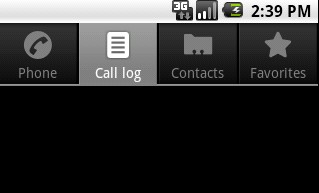
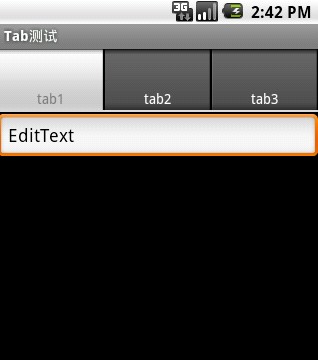
TabHost广泛运用于android程序中,在程序中运用TabHost,解决了手机屏幕小,显示内容少的问题,如系统自带的拨号程序,就用了TabHost. 分为拨号、通话纪录、联系人、收藏几个Tab。 先看今天学习的例子的最终效果。 分为三个标签Tab1、Tab2、Tab3。 TabHost与普通的Activity有点区别,主程序继承TabActivity,而不是Activity。所以,在新建项目时Creat Activity不要勾选,因为这里创建的是普通的Activity. 建好项目后,新建一个Class,SuperClass选择android.app.TabActivity,然后将这个TabActivity加入AndroidMainifest.xml,用以下代码:
 <activity android:name=".main"
                  android:label="@string/app_name">
            <intent-filter>
                <action android:name="android.intent.action.MAIN" />
                <category android:name="android.intent.category.LAUNCHER" />
            </intent-filter>
        </activity>

这段代码放在application标签内,第一行的main要和刚刚建立的TabActivity名对应。 然后就是布局XML,这里用到FrameLayout,框架布局,把三个Tab的布局放在一个FrameLayout里,用id区分。

<?xml version="1.0" encoding="utf-8"?>
<FrameLayout xmlns:android="http://schemas.android.com/apk/res/android"
    android:layout_width="fill_parent"
    android:layout_height="fill_parent">
    <!--tab1的布局 -->
   <LinearLayout android:id="@+id/tab1"
        android:layout_width="fill_parent" android:layout_height="fill_parent"
        androidrientation="vertical" >
        <EditText android:id="@+id/widget34" android:layout_width="fill_parent"
            android:layout_height="wrap_content" android:text="EditText"
            android:textSize="18sp">
        </EditText>
        <Button android:id="@+id/widget30" android:layout_width="wrap_content"
            android:layout_height="wrap_content" android:text="Button">
        </Button>
    </LinearLayout>
    <!--tab2的布局 -->
    <LinearLayout android:id="@+id/tab2"
        android:layout_width="fill_parent" android:layout_height="fill_parent"
        androidrientation="vertical"  >
        <AnalogClock android:id="@+id/widget36"
            android:layout_width="wrap_content" android:layout_height="wrap_content">
        </AnalogClock>
    </LinearLayout>
    <!--tab3的布局 -->
    <LinearLayout android:id="@+id/tab3"
        android:layout_width="fill_parent" android:layout_height="fill_parent"
        androidrientation="vertical">
        <RadioGroup android:id="@+id/widget43"
            android:layout_width="166px" android:layout_height="98px"
            androidrientation="vertical">
            <RadioButton android:id="@+id/widget44"
                android:layout_width="wrap_content" android:layout_height="wrap_content"
                android:text="RadioButton">
            </RadioButton>
            <RadioButton android:id="@+id/widget45"
                android:layout_width="wrap_content" android:layout_height="wrap_content"
                android:text="RadioButton">
            </RadioButton>
        </RadioGroup>
    </LinearLayout>

</FrameLayout>

程序代码:

package com.pocketdigi;

import android.app.TabActivity;
import android.os.Bundle;
import android.view.LayoutInflater;
import android.widget.TabHost;

public class main extends TabActivity {
    public void onCreate(Bundle savedInstanceState) {
        super.onCreate(savedInstanceState);
        setTitle("Tab测试");
        TabHost tabHost = getTabHost();
        LayoutInflater.from(this).inflate(R.layout.main,tabHost.getTabContentView(), true);
        tabHost.addTab(tabHost.newTabSpec("tab1").setIndicator("tab1").setContent(R.id.tab1));
        tabHost.addTab(tabHost.newTabSpec("tab3").setIndicator("tab2").setContent(R.id.tab2));
        tabHost.addTab(tabHost.newTabSpec("tab3").setIndicator("tab3").setContent(R.id.tab3));
    }

}

AsyncTask直译为异步任务,顾名思义,就是跟UI线程不同步,相对于UI来说是另一个线程,跟Handler类似,可以在后台执行任务,然后根据执行结果更新UI。今天这个例子以更新进度条ProgressBar为例,前面有过一篇通过Handler更新ProgressBar的笔记,感兴趣的朋友可以看看区别。效果就不传图片了,反正就是那样,就是一进度条进度不停地增加,还有一个TextView显示当前进度值(0-100),执行完会在标题栏提示“执行完毕”。 先是布局xml:

<?xml version="1.0" encoding="utf-8"?>
<LinearLayout xmlns:android="http://schemas.android.com/apk/res/android"
    android:orientation="vertical"
    android:layout_width="fill_parent"
    android:layout_height="fill_parent"
    >
<TextView  android:id="@+id/tv"
    android:layout_width="fill_parent" 
    android:layout_height="wrap_content" 
    android:text="@string/hello"
    />
<ProgressBar android:id="@+id/pb"
    android:layout_width="fill_parent"
    android:layout_height="wrap_content"
    style="?android:attr/progressBarStyleHorizontal"
/>
</LinearLayout>

布局很简单,就是一个ProgressBar和一TextView,然后是程序代码:

package com.pocketdigi;

import android.app.Activity;
import android.os.AsyncTask;
import android.os.Bundle;
import android.widget.ProgressBar;
import android.widget.TextView;

public class main extends Activity {
    /** Called when the activity is first created. */
    ProgressBar pb;
    TextView tv;
    @Override
    public void onCreate(Bundle savedInstanceState) {
        super.onCreate(savedInstanceState);
        setContentView(R.layout.main);
        pb=(ProgressBar)findViewById(R.id.pb);
        tv=(TextView)findViewById(R.id.tv);
        updatePb uptask=new updatePb();
        uptask.execute(100);
        //后面的按定义是线程休息时间,即每100MS,进度加1
    }
    class updatePb extends AsyncTask{
        //后面尖括号内分别是参数(例子里是线程休息时间),进度(publishProgress用到),返回值 类型
        protected String doInBackground(Integer... params) {
            // TODO Auto-generated method stub
            for(int i=0;i<=100;i++){
                pb.setProgress(i);
                publishProgress(i,5);
                try {
                    Thread.sleep(params[0]);
                } catch (InterruptedException e) {
                    // TODO Auto-generated catch block
                    e.printStackTrace();
                }
            }
            return "执行完毕";
        }
        protected void onProgressUpdate(Integer... progress) {
            tv.setText(String.valueOf(progress[0]));
            //这个函数在doInBackground调用publishProgress时触发,虽然调用时只有一个参数
            //但是这里取到的是一个数组,所以要用progesss[0]来取值
            //第n个参数就用progress[n]来取值
        }
        protected void onPostExecute(String result) {
            setTitle(result);
            //doInBackground返回时触发,换句话说,就是doInBackground执行完后触发
            //这里的result就是上面doInBackground执行后的返回值,所以这里是"执行完毕"
        }


    }
}

关于GridView的使用请查看上一篇文章Android UI设计 图片列表GridView用法,本文讲的是在上一篇文章的基础上实现自动下载显示网络上的图片。 布局XML代码不需要修改,程序代码也基本一致,只要稍稍修改下图片适配器就可以了。

    public class ImageAdapter extends BaseAdapter {
        private Context mContext;

        public ImageAdapter(Context c) {
            mContext = c;
        }

        public int getCount() {
            return myImageURL.length;
        }

        public Object getItem(int position) {
            return null;
        }

        public long getItemId(int position) {
            return 0;
        }

        public View getView(int position, View convertView,
                ViewGroup parent)
            {
              /* ImageView */

              ImageView imageView = new ImageView(this.mContext);
              try
              {
                URL aryURI = new URL(myImageURL[position]);
                /* 打开连接 */
                URLConnection conn = aryURI.openConnection(); 
                conn.connect();
                /* 转变为 InputStream */
                InputStream is = conn.getInputStream();
                /* 将InputStream转变为Bitmap */
                Bitmap bm = BitmapFactory.decodeStream(is);
                /* 关闭InputStream */
                is.close();
                /*添加图片*/
                imageView.setImageBitmap(bm);
              } catch (IOException e)
              {
                e.printStackTrace();
              }

              // 填充ImageView
              imageView.setLayoutParams(new GridView.LayoutParams(150,133));
              imageView.setScaleType(ImageView.ScaleType.CENTER_CROP);
              imageView.setPadding(4,2,2,2);
              return imageView;
            }

        // references to our images
       
    }

接着定义图片URL,上文是用mThumbIds,一个数组把预先放在drawable目录的的图片放进去,这里是把多个图片URL放进String[] myImageURL数组。

2011年05月13日修正:GridView并非图片列表,而是一个表格控件,相当于HTML的Table,之前给各位新手朋友造成的误解,请见谅。本文的例子是用GridView显示图片。以下文字中的错误没有修改,请注意。 GridView展示的是一个图片浏览器(或者叫图片列表),一般用来显示多张图片的缩略图,可能我说得不够明白,看效果图吧! 因为是为FWVGA(MS/DROID)设计的,所以在HVGA的模拟器上显示有点挤。 布局XML:

<?xml version="1.0" encoding="utf-8"?>
<AbsoluteLayout xmlns:android="http://schemas.android.com/apk/res/android"
    android:orientation="vertical"
    android:layout_width="fill_parent"
    android:layout_height="fill_parent"
    >
<GridView
    android:id="@+id/grid_view"
    android:layout_width="fill_parent" 
    android:layout_height="wrap_content"
    android:numColumns="3" 
    android:verticalSpacing="5dp"
    android:horizontalSpacing="5dp"
    android:columnWidth="20dp"
    android:stretchMode="columnWidth"
    android:gravity="center"
/>
</AbsoluteLayout>

程序代码:

package com.pocketdigi;
 
import android.app.Activity;
import android.content.Context;
import android.os.Bundle;
import android.view.View;
import android.view.ViewGroup;
import android.view.Window;
 
import android.widget.BaseAdapter;
 
 
import android.widget.GridView;
 
import android.widget.ImageView;
 
 
public class main  extends Activity  {
 
 
    @Override
    public void onCreate(Bundle savedInstanceState) {
        super.onCreate(savedInstanceState);
        setContentView(R.layout.grid_view);
        setTitle("GridViewActivity");
        GridView gridview = (GridView) findViewById(R.id.grid_view);
        gridview.setAdapter(new ImageAdapter(this));
    }
 
 
    public class ImageAdapter extends BaseAdapter {
        private Context mContext;
 
        public ImageAdapter(Context c) {
            mContext = c;
        }
 
        public int getCount() {
            return mThumbIds.length;
        }
 
        public Object getItem(int position) {
            return null;
        }
 
        public long getItemId(int position) {
            return 0;
        }
 
        public View getView(int position, View convertView, ViewGroup parent) {
            ImageView imageView;
            if (convertView == null) {  
                imageView = new ImageView(mContext);
                imageView.setLayoutParams(new GridView.LayoutParams(85, 85));
                imageView.setScaleType(ImageView.ScaleType.CENTER_CROP);
                imageView.setPadding(8, 8, 8, 8);
            } else {
                imageView = (ImageView) convertView;
            }
 
            imageView.setImageResource(mThumbIds[position]);
            return imageView;
        }
 
        // references to our images
        private Integer[] mThumbIds = {
                R.drawable.grid_view_01, R.drawable.grid_view_02,
                R.drawable.grid_view_03, R.drawable.grid_view_04,
                R.drawable.grid_view_05, R.drawable.grid_view_06,
                R.drawable.grid_view_07, R.drawable.grid_view_08,
                R.drawable.grid_view_09, R.drawable.grid_view_10,
                R.drawable.grid_view_11, R.drawable.grid_view_12,
                R.drawable.grid_view_13, R.drawable.grid_view_14,
                R.drawable.grid_view_15, R.drawable.sample_1,
                R.drawable.sample_2, R.drawable.sample_3,
                R.drawable.sample_4, R.drawable.sample_5,
                R.drawable.sample_6, R.drawable.sample_7
        };
    }


}